Fund Allocations
Last updated: July 8, 2026
Fund Allocations takes a single block trade executed in your omnibus account and splits it across the client accounts it was traded for. Instead of keeping a virtual record, Molecule creates a real, cleared trade in each client (SMA) account — so every allocated position gets full valuation, pricing, fees, FX exposure, reconciliation, and YTD reporting, exactly like any other trade in the system.
What it Does
When Fund Allocations is enabled, an Allocations item appears in your sidebar. Trades on the books you've set up for allocation are automatically grouped by product and contract month, then split across your client accounts — each one receiving a share based on its size (AUM) and leverage. Your operations team reviews the proposed splits each day, adjusts them if needed, and finalizes. On finalize, Molecule replaces the omnibus trade with one real cleared trade per client account.
Only one set of positions is live at a time — either the omnibus trade or its client-account trades, never both — so your valuations and exposures never double-count.
Setting Up Allocations
Setup lives in Fund Allocations Settings and has two parts:
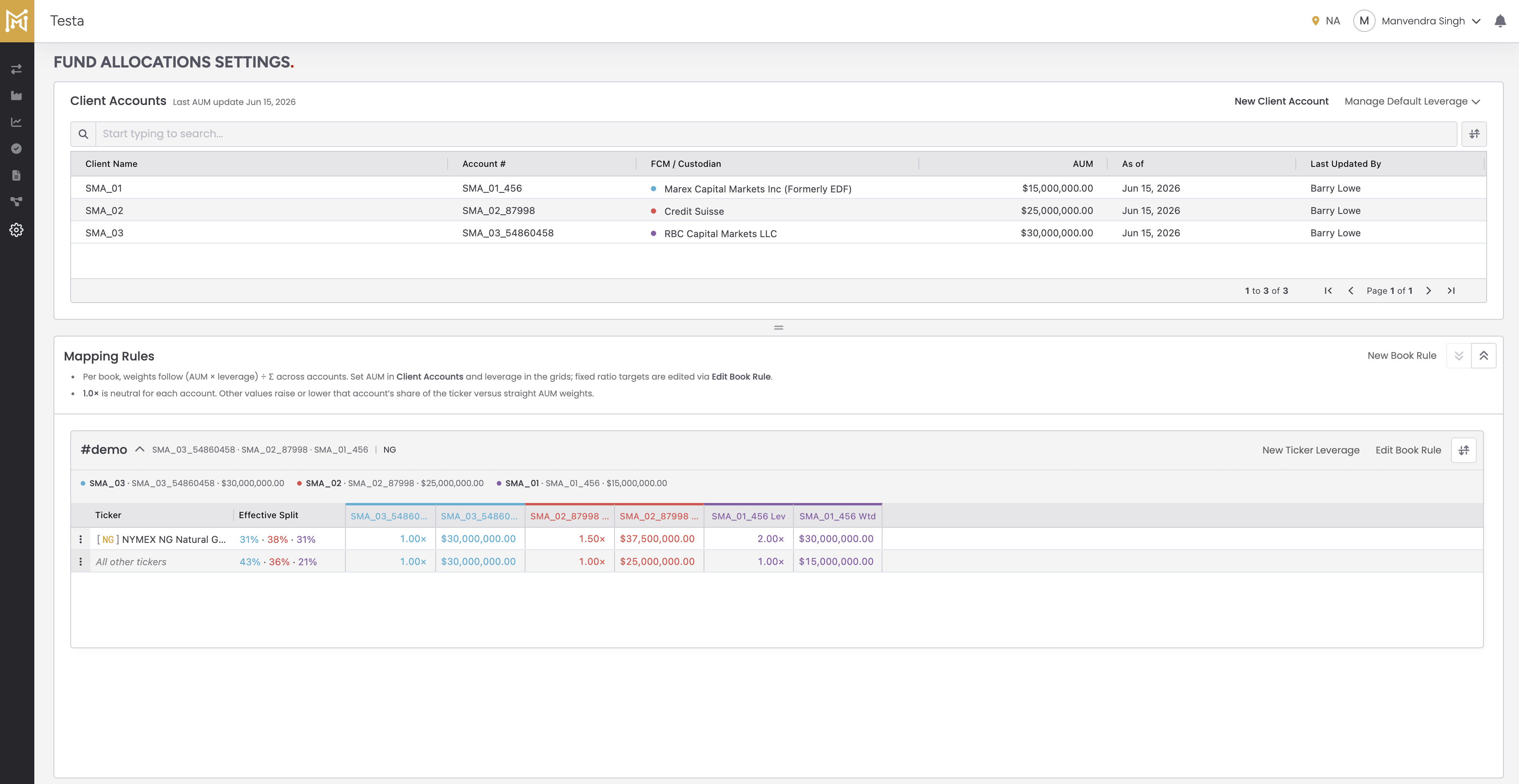
Client Accounts — your separately managed accounts. Add each one with its account number, FCM / custodian, and AUM . AUM drives each account's share of every trade, so keep it current; Molecule shows when an account's AUM was last updated and flags figures that have gone stale.
Mapping Rules — assign client accounts to each book and set their leverage . For every book, an account's weight follows (AUM × leverage) ÷ the total across the accounts on that book . A leverage of 1.0× is neutral ; raising or lowering it shifts that account's share. You can also set leverage for a specific ticker to override the book's default. The grid shows the resulting Effective Split so you can see the effect before you trade.
Reviewing and Finalizing
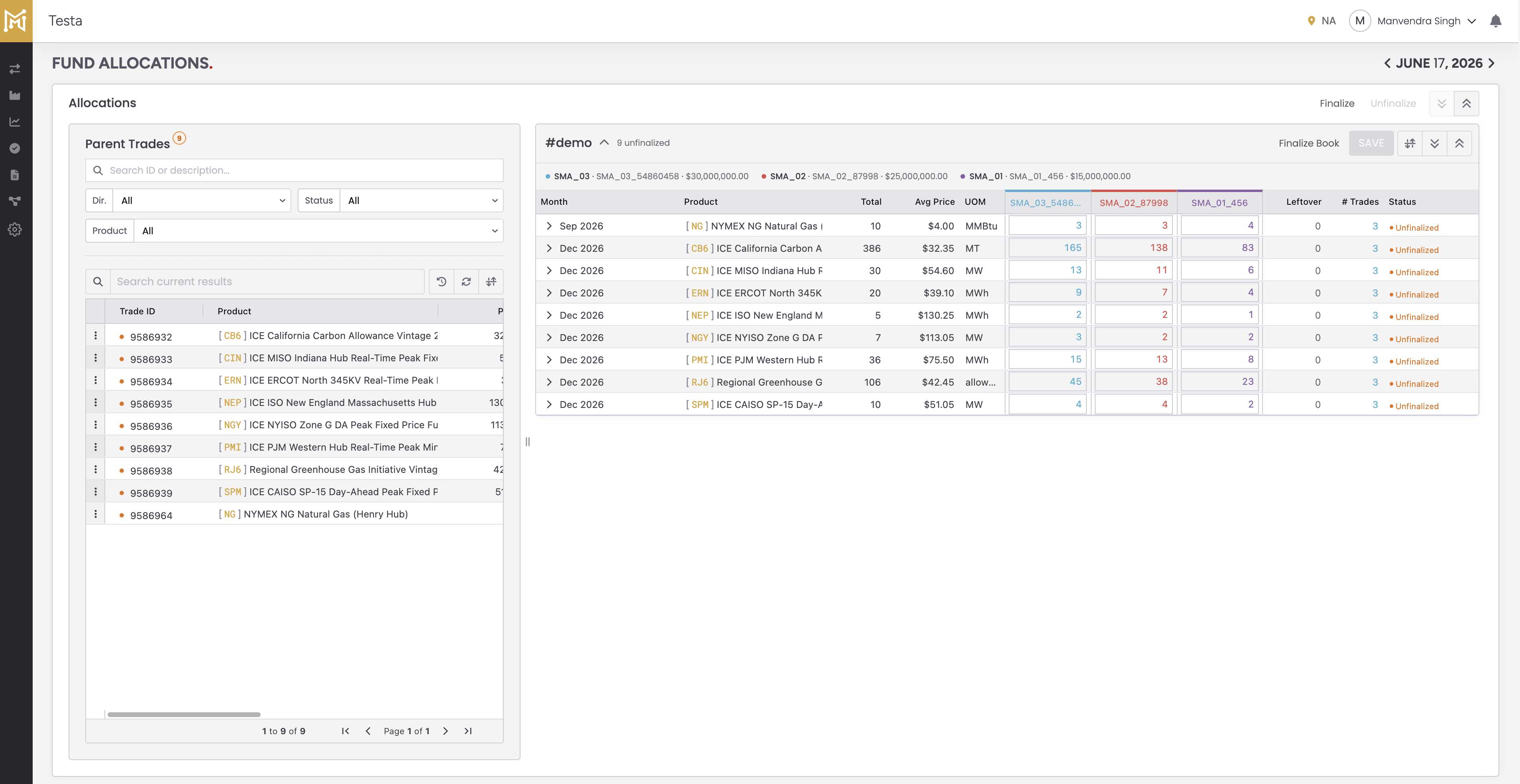
The Allocations screen is where your team works each day. Use the date navigator at the top to move between trading days.
Parent Trades (left) lists the day's block trades. Search by ID or description, or filter by direction, status, and product.
The book grid (right) shows one row per product and contract month, with a column for each client account. Proposed quantities are editable, and a Leftover column shows any unallocated balance. Quantities are always whole contracts, so when a split leaves an odd lot, it goes to the account with the largest share.
Adjust quantities as needed and Save. When a book's splits are correct, Finalize Book locks them in and creates the cleared trade in each client account. New trades that arrive after you've finalized form their own group, so you can finalize just those without disturbing what's already done. Unfinalize reverses a finalization — it removes the client-account trades, restores the omnibus trade, and reopens the quantities for editing. (Unfinalize requires a specific permission; if you don't see it, ask an administrator.)
Independent Trades
Sometimes a single trade shouldn't be split, even on an allocated book. Check Don't Allocate on the trade form to keep it as a standalone trade. When a trade will be allocated, the form shows a live split preview, so you can see each account's estimated share before you save. To pull a trade out after the fact, use Make Independent on any unfinalized row.