# How to Create a New Counterparty
With the [organizational admin permission](/onboarding/welcome-and-getting-started/account-and-user-settings-overview.md), you can create new counterparties in the Molecule application, unless there is a lock on the handle which means it is a system-wide counterparty.
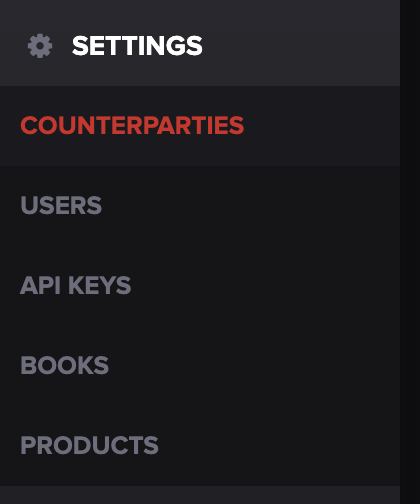
First, navigate to the **SETTINGS** tab from the main menu, then select **COUNTERPARTIES**.
To add counterparties, press the **+ COUNTERPARTY** on the right-hand side of the screen.
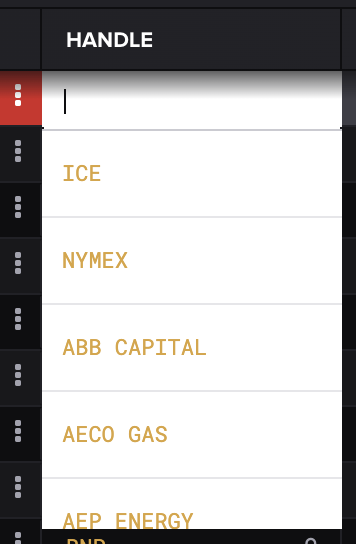
A new row will auto-populate at the top of the table. You'll be prompted to fill out the **HANDLE**. Choose your counterparty by scrolling or using the search box.
Once selected, you will need to fill out the counterparty's information.
You will not be able to change the first two fields because they are common across the system, but you can change the rest.
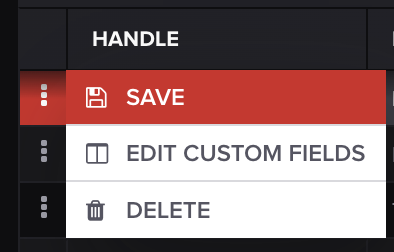
Click on the boxes in the table to fill out each column. When you're finished, press the three dots on the right-hand side of the trade icon.
From there, you can either press **SAVE**, **EDIT CUSTOM FIELDS**, or **DELETE** your new counterparty.
Your new counterparty should be available on all screens except any filters you have in custom reports. As an approved counterparty, it will also show at the top of counterparty lists and will have a checkmark next to it. Try refreshing your browser tab if you have any issues seeing this counterparty in drop-downs.
---
# Agent Instructions: Querying This Documentation
If you need additional information that is not directly available in this page, you can query the documentation dynamically by asking a question.
Perform an HTTP GET request on the current page URL with the `ask` query parameter:
```
GET https://help.molecule.io/core-functionality/core-features/back-office/how-to-create-a-new-counterparty.md?ask=
```
The question should be specific, self-contained, and written in natural language.
The response will contain a direct answer to the question and relevant excerpts and sources from the documentation.
Use this mechanism when the answer is not explicitly present in the current page, you need clarification or additional context, or you want to retrieve related documentation sections.