# Curve Builder
#### About
Apply custom formulas to create forward curves. Forward curves are automatically updated with current market data for marking, settling, valuations and exposures while maintaining an audit history.
Trading NGPL Midcont Physical gas and want to mark it against Henry Hub + Basis + Index? No problem. Follow the instructions below to setup a formula to create a curve for this automatically as soon as the relevant underlying market data becomes available.
#### Access
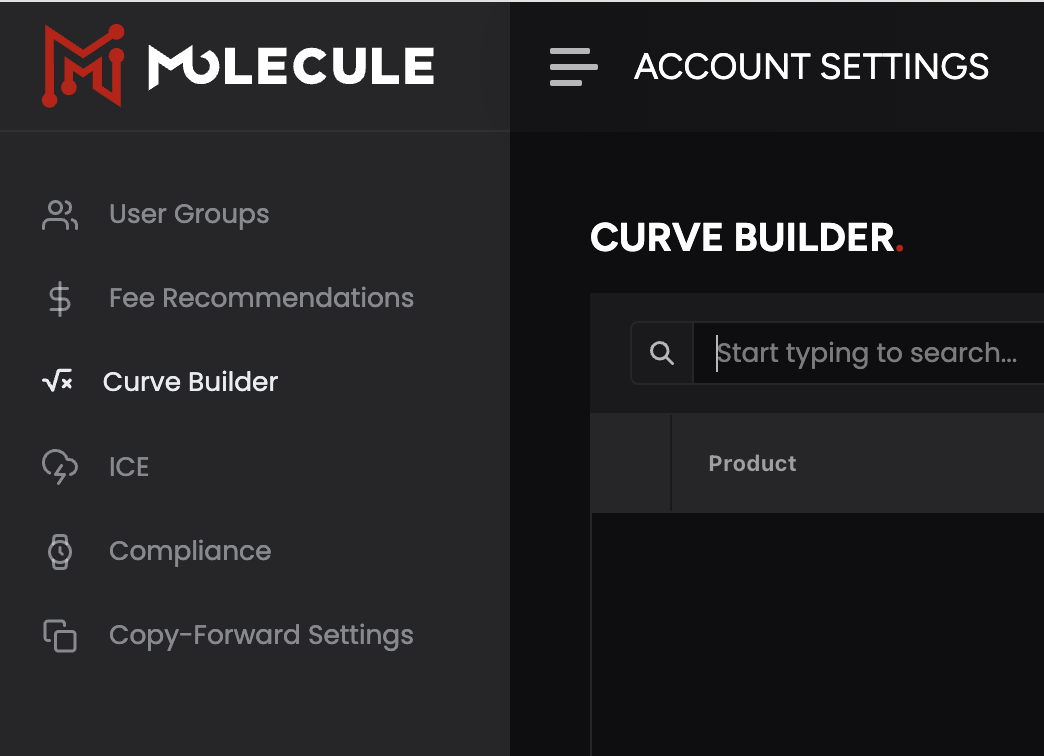
Access to Curve Builder is restricted to users with specific permissions. If granted the `Market Data Admin` permissions, you can build or edit curves for your account. Find Curve Builder in the Navigation menu `Settings` > `Account Settings` 💡 **Tip:** If you don't find Curve Builder in the menu, you'll need to request access from your account administrator.
#### View Curves
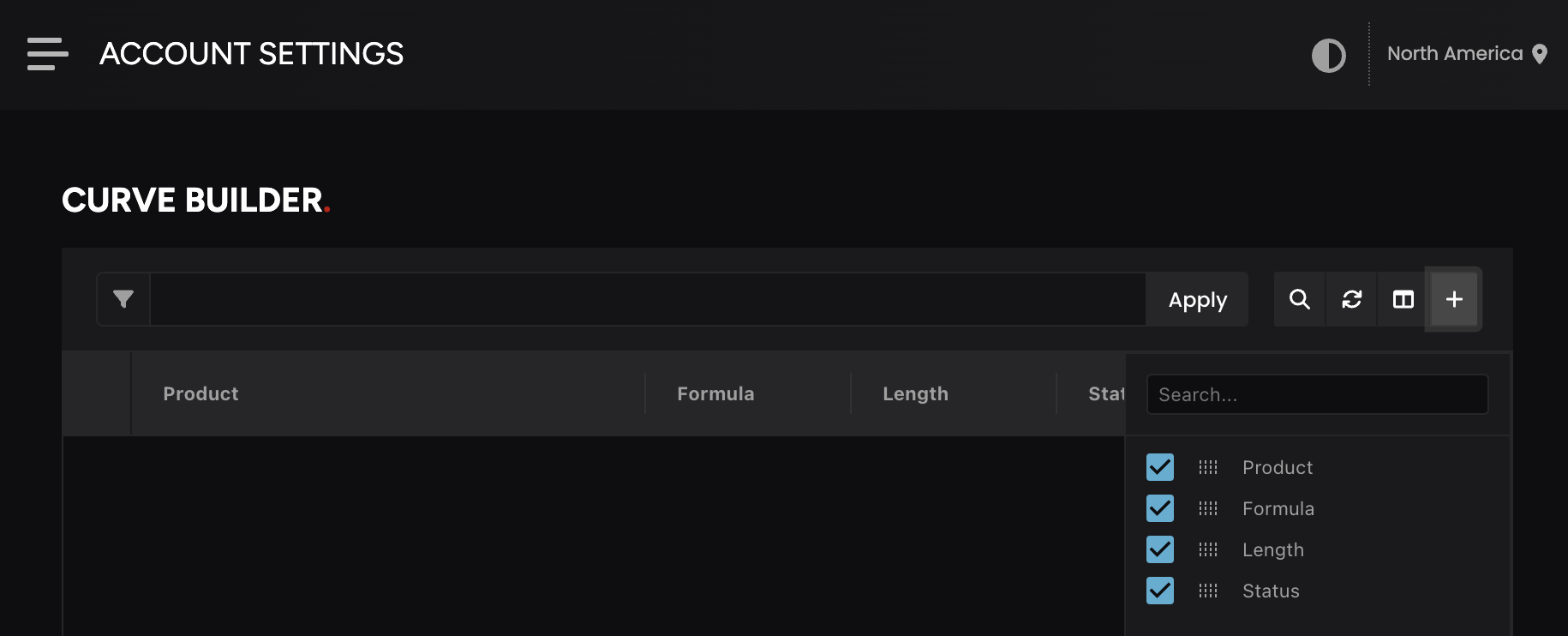
Upon accessing Curve Builder, you’ll land on the list page where you can **build a new curve** by clicking the **(+)** button or **manage** **an existing curve** by clicking on a curve. 💡 **Tip:** Find an existing curve by using the filter bar by typing a product name or clicking the search icon.
#### Build a New Curve
After clicking the **(+)** button to build a new curve, follow these steps:
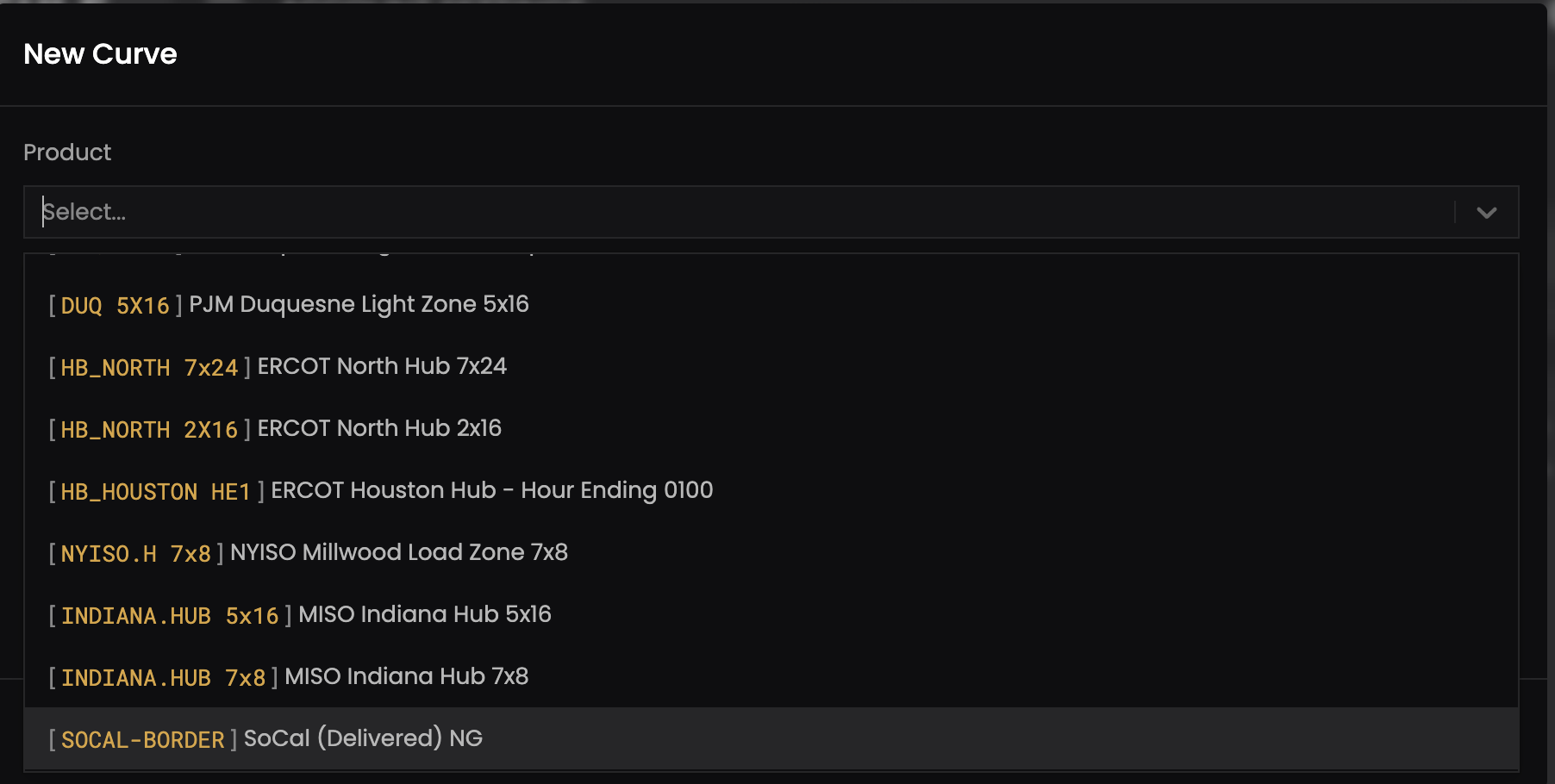
1. **Select a Product**: Click the **Product** dropdown to choose the product you want to build a curve for.
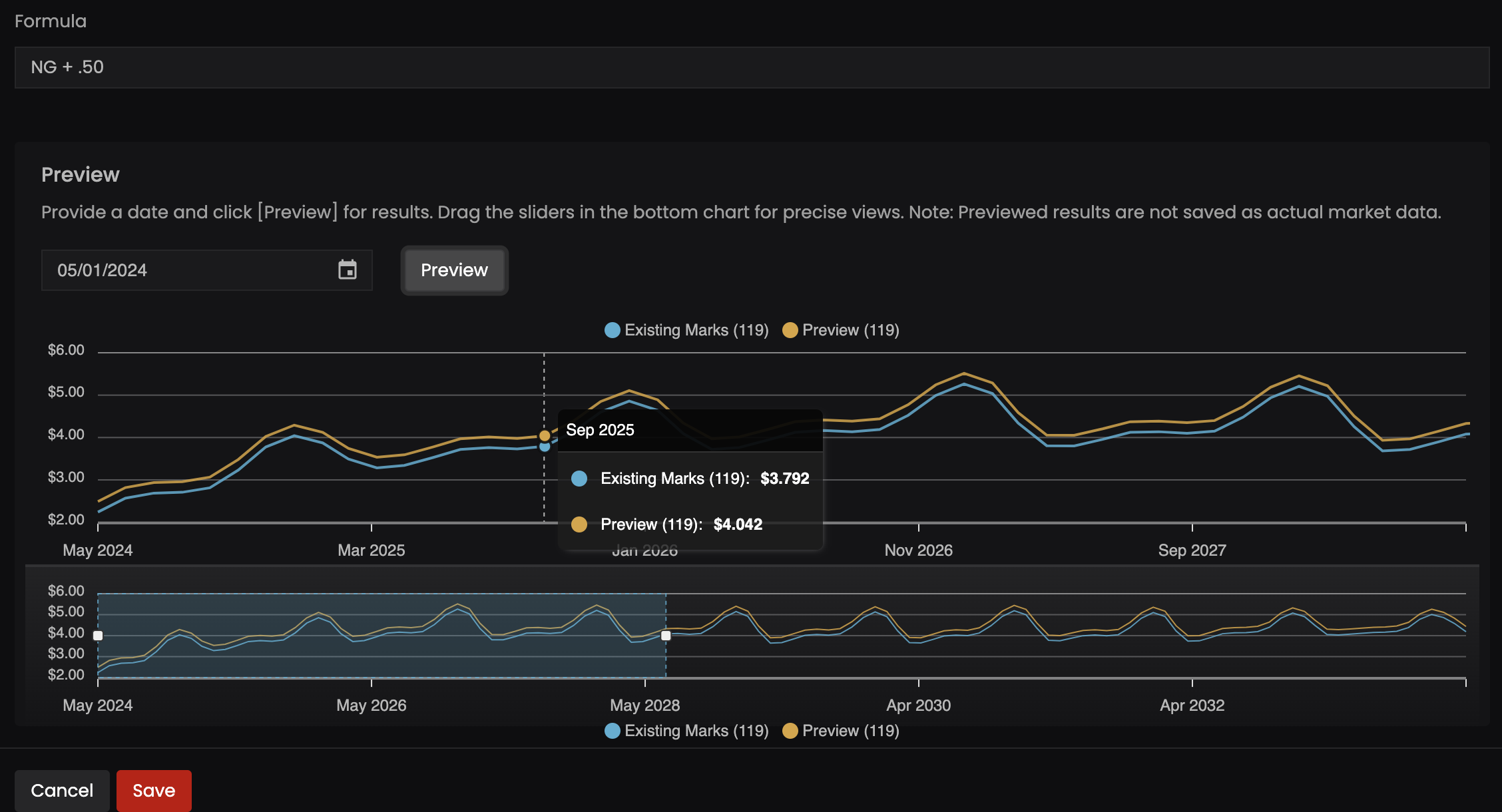
2. **Apply a Formula**: Enter your custom formula in the **Formula** field to calculate future prices for the selected product.
3. **Set Length Override (Optional)**: Specify a different length in the **Length Override** field for a custom time horizon.\
💡 **Note:** Default values are: `Hourly:25` `Daily:35` `Weekly:55` `Monthly:120` `Quarterly:30` `Half-yearly:20` `Yearly:10.`
4. **Preview**: Provide a date and click **Preview** for results. Compare against your existing formula. Drag the sliders in the bottom chart for precise views. 💡**Note:** Previewed results are not saved as actual market data.
1. **Activate**: Ensure the **Status** toggle is set to **Active** so your curve is utilized in trade marking, settling, and valuation.
2. **Save**: Confirm your settings with the **Save** button. Your new curve will automatically update with fresh market data as it comes in.
#### Manage Curves
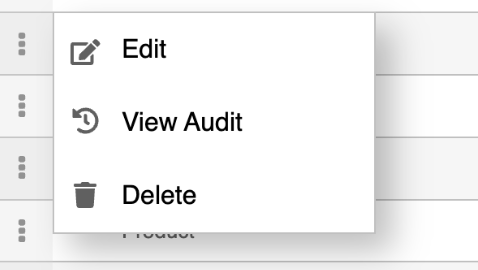
For existing curves, navigate to a curve from the list and use the **3-dot menu.**
**Edit**: Modify the product, formula, or length override, and toggle the status between active and inactive. Remember to save any changes made.
**View Audit**: Access the audit history to review a record of modifications, including creator, creation date, and edit history.
**Delete**: Remove a curve if it’s no longer needed.💡 **Tip:** Note: Deletion is permanent, so ensure you’ve saved all necessary information elsewhere
#### FAQ
**Why can't I find the Curve Builder menu?**
Access to the Curve Builder is restricted to users who have been granted `Market Data Admin` permissions. These permissions can be set in the `Account Settings` by an account admin. Check to see that you have the necessary permissions.
**How do I create or edit a curve?**
To create a new curve, navigate to the Curve Builder via `Settings` > `Account Settings`, click the **Add New (+)** button, select your product, input your formula, set any length overrides if necessary, activate the curve, and save your settings. You can edit an existing curve by navigating to it on the Curve Builder listing page, clicking the **3-dot menu**, and selecting '**Edit.**'
**Is there an API I can use to build a curve?**
No, not at this time. Curves are built and managed via the Molecule app.
**What is a Length Override?**
A Length Override option allows you to set a custom projection period for your curve when you have specific time horizon requirements for your trading strategy that differ from the default values. When not overridden, the default values are based on the target product's frequency. Default values are `Hourly:25` `Daily:35` `Weekly:55` `Monthly:120` `Quarterly:30` `Half-yearly:20` `Yearly:10.`
**How often are the curves updated?**
Curves are updated daily with the latest market data to reflect the most current market conditions for accurate marking, settling, and valuation.
**What if I delete a curve?**
Deleting a curve is a permanent action that removes the curve and all its associated data from the platform. Ensure that you export or save any data required before deleting a curve.
**Can I view changes made to a curve over time?**
Yes, you can view an audit history for each curve that details all the changes, including who made the change and when it was made. This can be accessed from the **3-dot menu** by selecting 'View Audit.'
**Can I** **test my formula before applying it?**
Yes you can preview and also compare against your existing formula by providing a date and clicking **Preview.** Drag the sliders in the bottom chart to zoom in/out.
**Can I share my custom curve with other account users?**
Sharing depends on the permissions set by your account administrator for your organization's account leaders. Other users within your organization can view curves with the appropriate permissions.
**Have a question this article wasn’t able to answer?** Reach out to your Customer Success Manager to get the answers you need.
---
# Agent Instructions: Querying This Documentation
If you need additional information that is not directly available in this page, you can query the documentation dynamically by asking a question.
Perform an HTTP GET request on the current page URL with the `ask` query parameter:
```
GET https://help.molecule.io/core-functionality/core-features/specialized-features/curve-builder.md?ask=
```
The question should be specific, self-contained, and written in natural language.
The response will contain a direct answer to the question and relevant excerpts and sources from the documentation.
Use this mechanism when the answer is not explicitly present in the current page, you need clarification or additional context, or you want to retrieve related documentation sections.