# How to Split a Trade
Release #243, which went out on July 5th, 2022, introduced the ability to easily split a trade into multiple, smaller trades. Follow these instructions to split a trade.
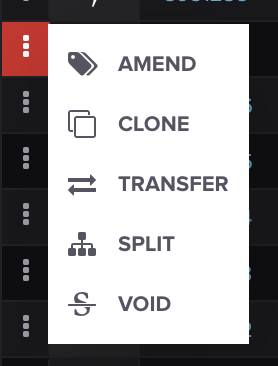
On the **TRADES** screen, find the trade you wish to split, click the hamburger action menu, and select **SPLIT**.
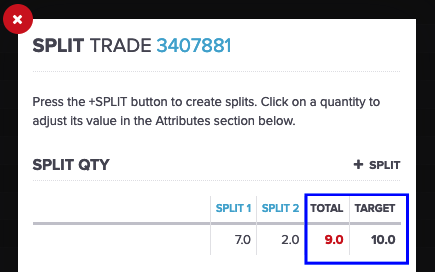
The resulting modal window provides a form for creating split trades. In the example screenshot below, we are splitting a 10-lot trade into a 7-lot trade and a 3-lot trade.
New trades can be added by clicking the **+ SPLIT** button. The quantities for the split trades are changed in the attributes section of the form.
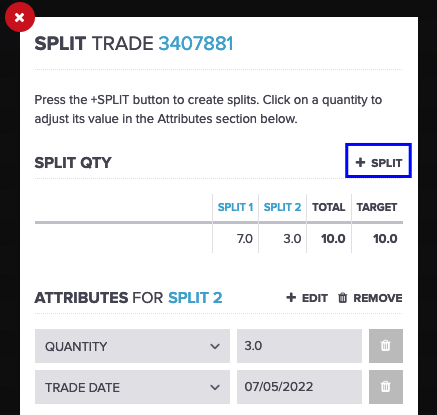
On each split trade, you have the ability to change an
attributes of the trade that need to change from the original trade. Attributes can be changed on the split trades by clicking the **+ EDIT** button. A new attribute row will appear where you can select an attribute to update and input the value for the attribute.
You can navigate between the split trades by clicking on the columns of the **SPLIT QTY** summary grid.
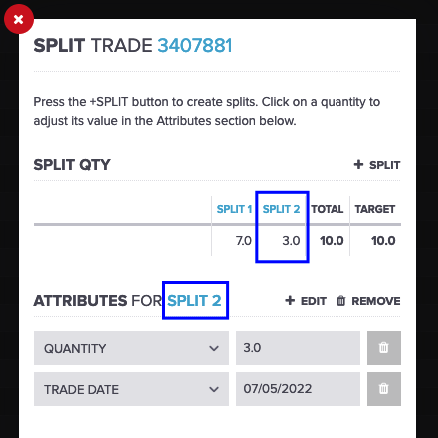
The sum of quantities of the split trades must equal the original trade's quantity. The summary grid shows the total split quantity vs. the original trade's quantity, as shown below:
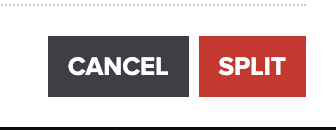
Once everything is correctly split, select the **SPLIT** button on the bottom right-hand side.
### Splitting a Group of Trades
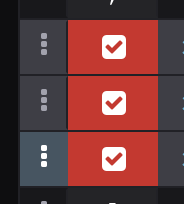
To split a group of trades, check out our [How to Group Trades](/core-functionality/core-features/specialized-features/trades/trades-screen/how-to-group-ungroup-trades.md) article. Then, hover your mouse over the commodity icons and select the boxes you'd like to group and split. Your grouped trades should look like this:
Next, you can follow the steps above to split your group of trades.
That's it! We hope this will save you some time. If you have any questions, please let us know at
---
# Agent Instructions: Querying This Documentation
If you need additional information that is not directly available in this page, you can query the documentation dynamically by asking a question.
Perform an HTTP GET request on the current page URL with the `ask` query parameter:
```
GET https://help.molecule.io/core-functionality/core-features/specialized-features/trades/trade-amendments/how-to-split-a-trade.md?ask=
```
The question should be specific, self-contained, and written in natural language.
The response will contain a direct answer to the question and relevant excerpts and sources from the documentation.
Use this mechanism when the answer is not explicitly present in the current page, you need clarification or additional context, or you want to retrieve related documentation sections.