# How to Transfer a Trade
In Molecule, you can easily transfer a trade, or portion of a trade, to a separate trade with updated attributes, i.e. transferring a portion of a trade to a different FCM. Follow these instructions to transfer a trade.
Note that this is different from transferring a position, or an aggregate volume (potentially from multiple trades). For more on this topic, see [How to Transfer a Position](/core-functionality/core-features/specialized-features/trades/trade-entry-edit/how-to-transfer-a-position.md).
#### Steps
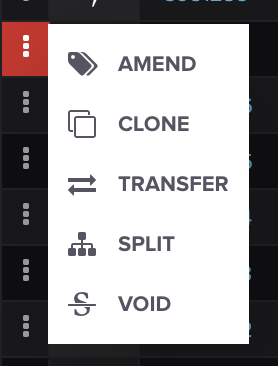
On the **TRADES** screen, find the trade you wish to transfer. Click the three dots on the left-hand side and select **TRANSFER** from the drop-down menu.
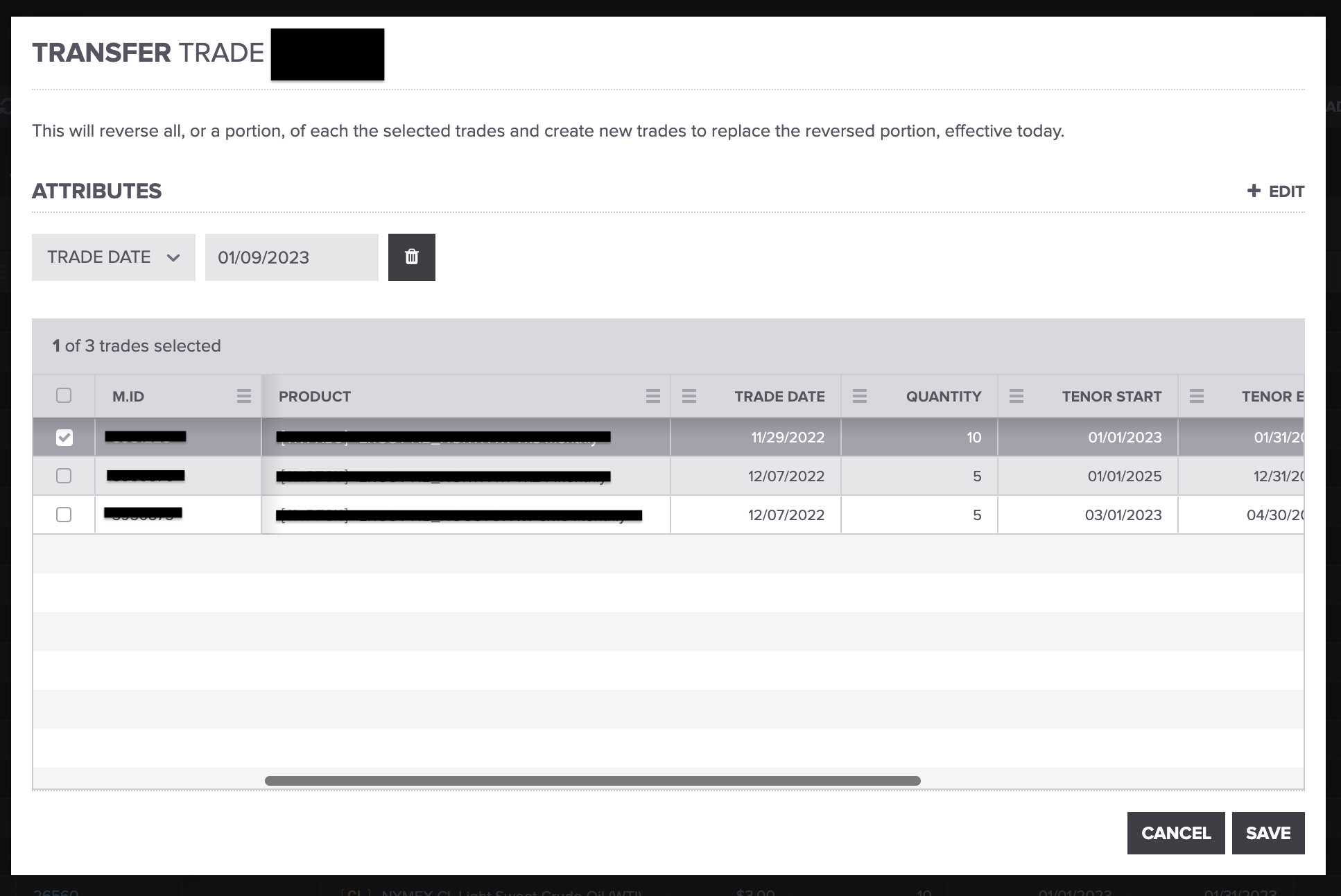
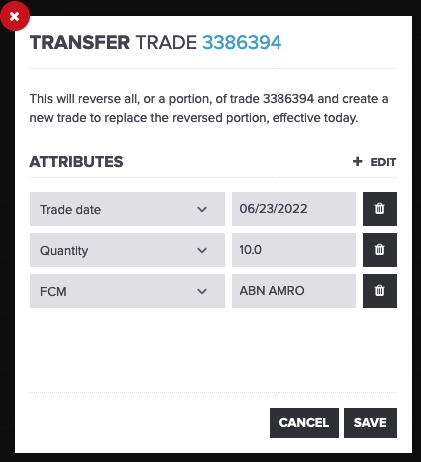
The resulting modal window provides a form where you can choose attributes to update on the trade to be transferred. It should look like this:
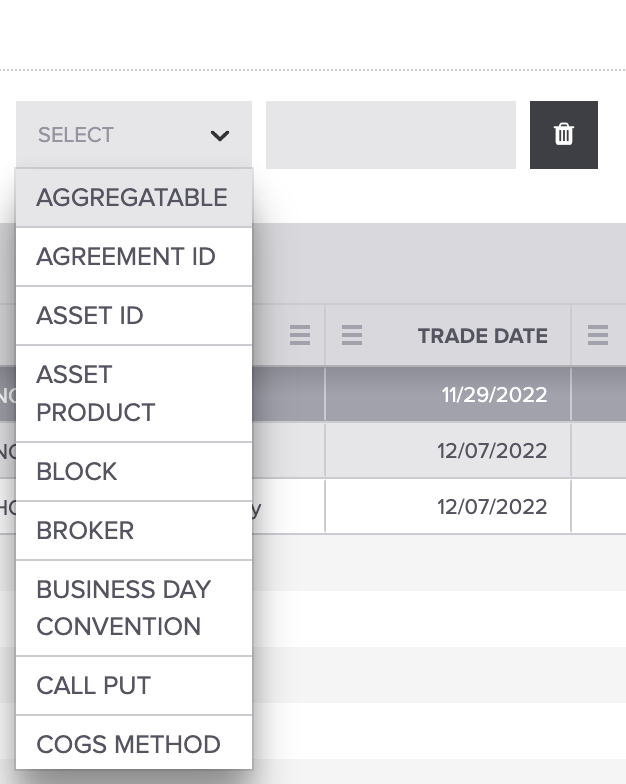
To add an attribute to change, click **+ EDIT** for a new attribute row to appear. Your screen should look like this:
You can scroll down, select the attribute you wish to change, and enter the value.
Once completed, change the attributes, click **SAVE**, and the trade will be transferred.
#### Transferring Grouped Trades
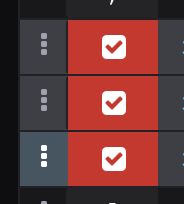
To transfer a group of trades, check out our [How to Group Trades](/core-functionality/core-features/specialized-features/trades/trades-screen/how-to-group-ungroup-trades.md) article. Then, hover your mouse over the trades you'd like to group and transfer and check the boxes accordingly. Your grouped trades should look like this:
Then, just follow the steps above to transfer your grouped trades.
#### Result of a Transfer
Upon completing a transfer, two trades will be created:
* One with a direction opposite to the original trade, with `@transfer-from` appended to its tags
* Another with the destination values, with `@transfer-to` appended
#### Transferring Trades (old version)
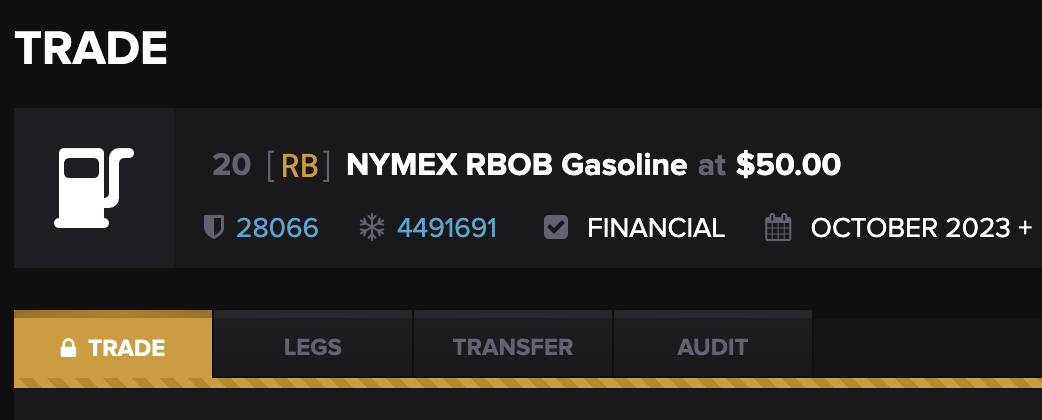
Molecule also offers a way to transfer a trade from within the trade itself. To access this feature, open a trade and click the Transfer tab.
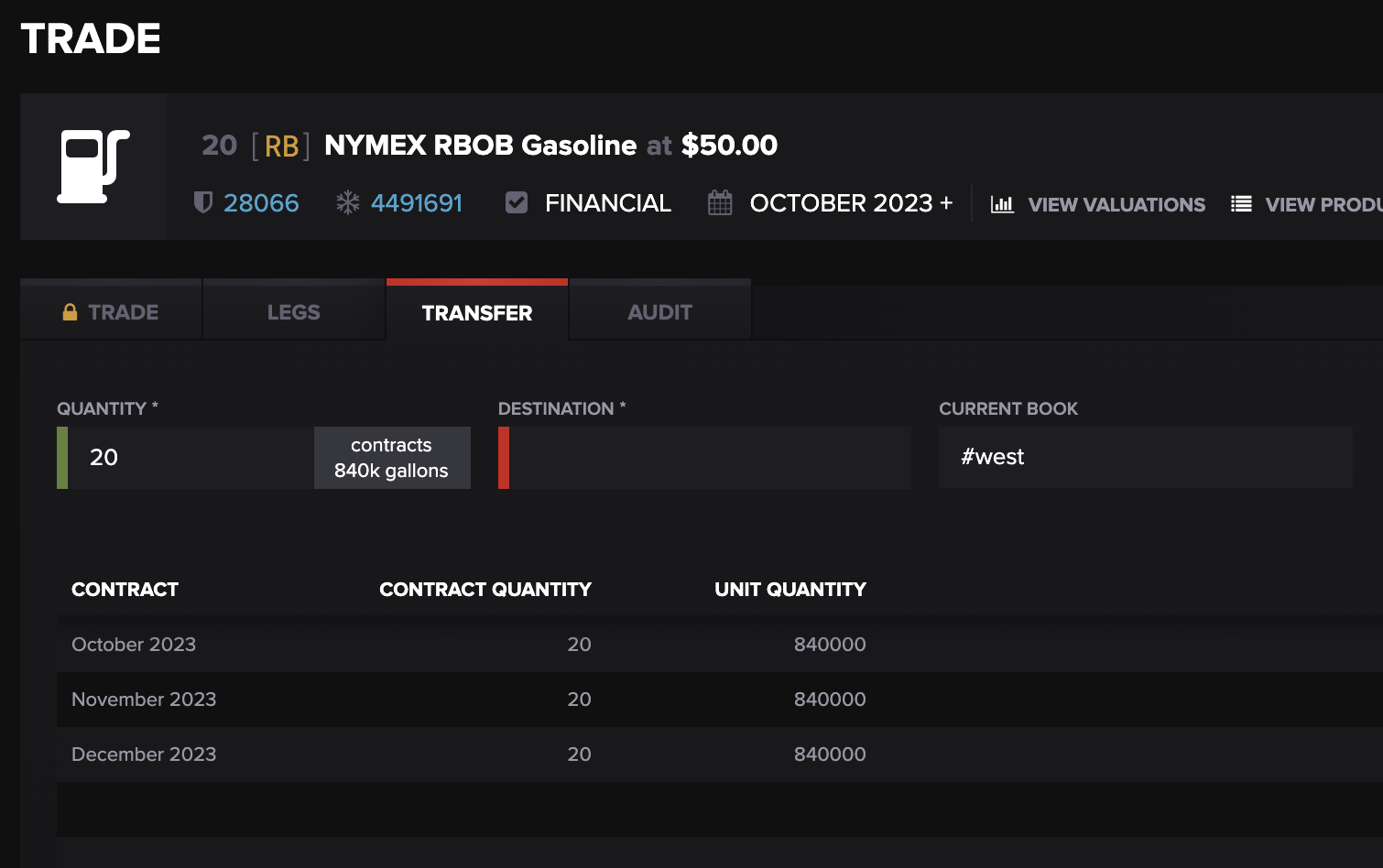
From the screen that appears, select the destination book and the volume you want to transfer and click **Apply:**
Two trades will be created, similar to the method above.
#### Old vs. New Functionality
The primary difference between the old and new versions of this feature, is that the old version only allows transfers within books. The new version allows transfers between any trade attribute (brokers, counterparties, etc.).
---
# Agent Instructions: Querying This Documentation
If you need additional information that is not directly available in this page, you can query the documentation dynamically by asking a question.
Perform an HTTP GET request on the current page URL with the `ask` query parameter:
```
GET https://help.molecule.io/core-functionality/core-features/specialized-features/trades/trade-amendments/how-to-transfer-a-trade.md?ask=
```
The question should be specific, self-contained, and written in natural language.
The response will contain a direct answer to the question and relevant excerpts and sources from the documentation.
Use this mechanism when the answer is not explicitly present in the current page, you need clarification or additional context, or you want to retrieve related documentation sections.