# How to Enter a Trade
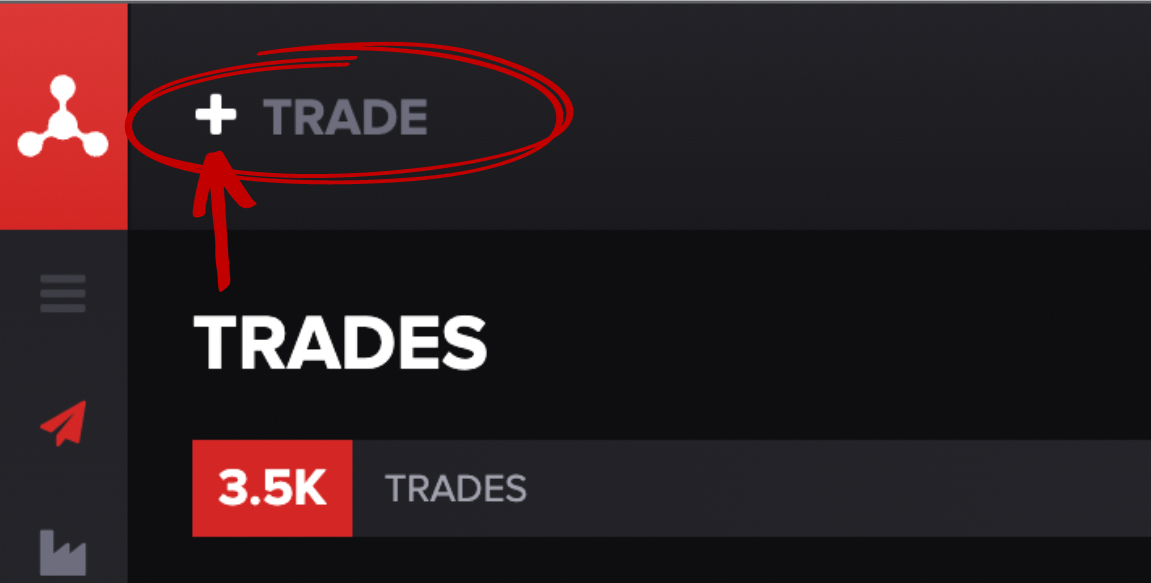
You can enter a trade by clicking on the top **+ TRADE** button in the top left-hand corner:
#### Manual Entry
Most of our customers prefer to enter trades manually, box by box.
After you press the **+** button, press any key for the field to populate. Once you do, it should look something like this:
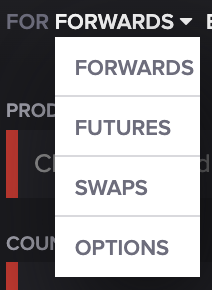
You can select the trade type from the drop-down menu on the left side of the text box:
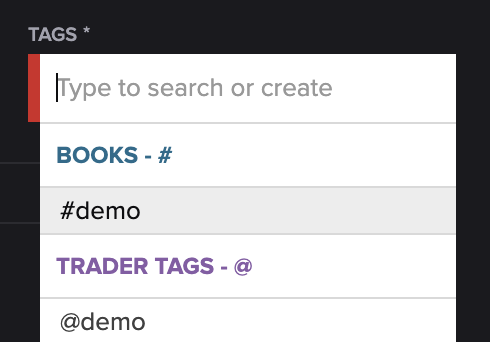
You can either type the product or counterparty codes into the text box or press the box and manually select from the drop-down menu like this:
#### NLP Entry
You can also enter trades using our NLP tool.
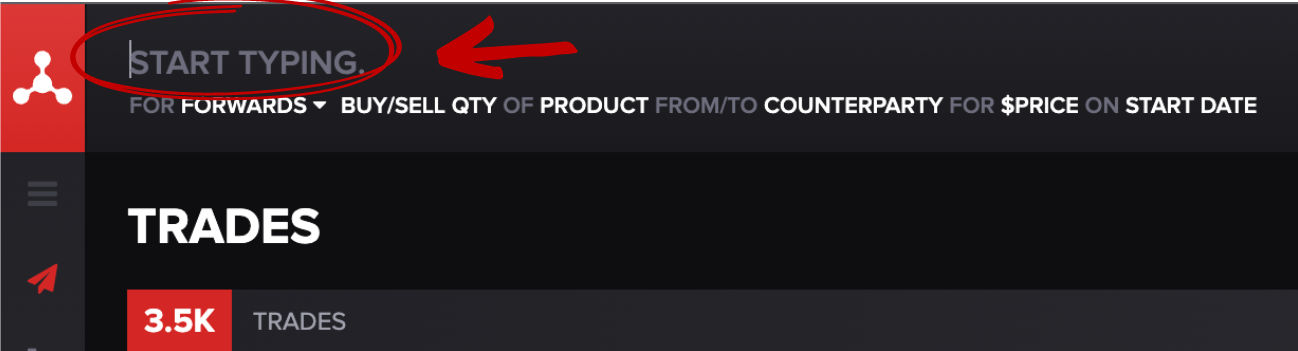
As soon as you click the **+** button, you can start typing following the NLP rule under the text:
The system will automatically populate the fields based on what you wrote in the text box. You can still manually enter fields if you're unsure of product or counterparty codes by clicking on typing something into individual boxes.
### Color Codes
Here's a guide to our color codes:
* **Red boxes** are required to fill out before you press save
* **Gray boxes** are not required to fill out before you press save
* **Green boxes** indicate you've satisfied the completion requirement
If you're having trouble saving a trade you've entered, make sure there are no red boxes on the screen.
#### Additional Fields
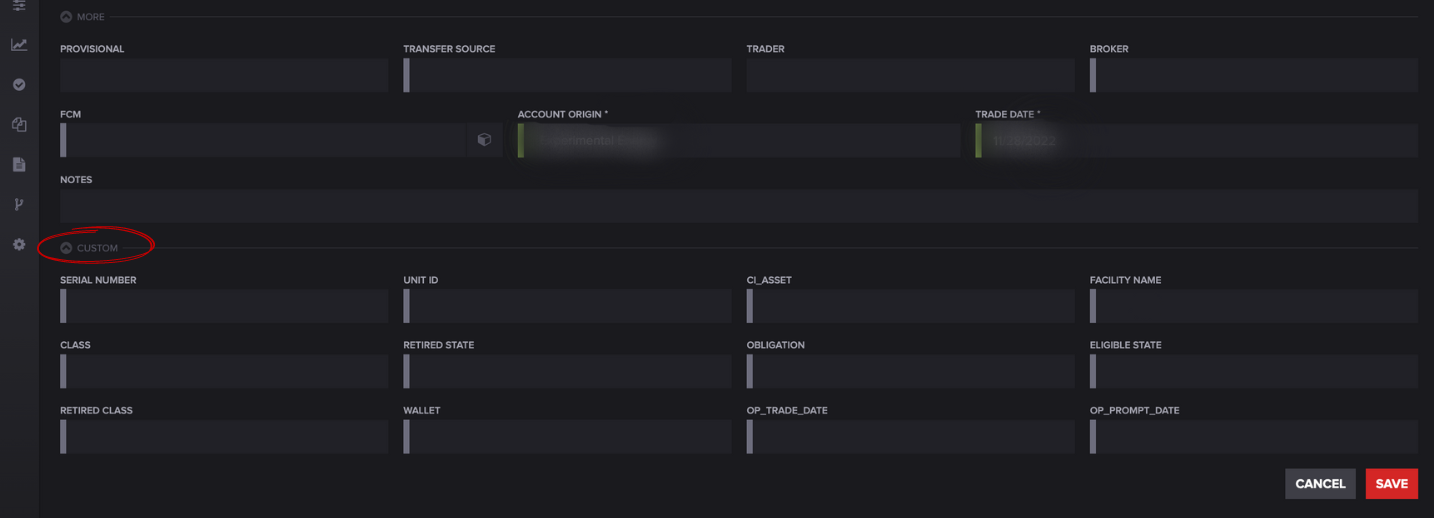
For additional fields, press the **MORE** drop-down under the original fields.
If you have requested custom fields for trade entries, press the drop-down under the **MORE** section. Your implementation team will help you set them up and answer any questions.
The fields shown are unique to your account, book, and tag.
To save the trade, press **SAVE** or the enter button.