# How to Group/Ungroup Trades
There are two ways to group your trades - manually or automatically.
#### Automatic Grouping
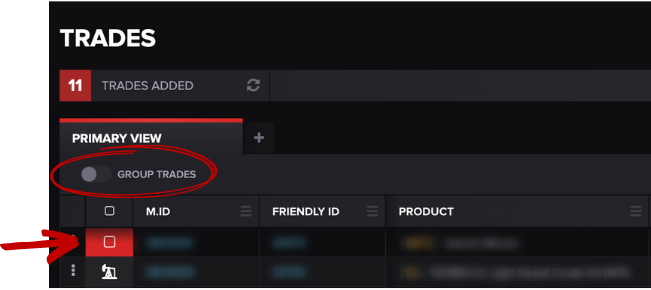
You can click the notch next to **GROUP TRADES** to group them automatically. Your trades will be grouped by commodity.
#### Manual Grouping
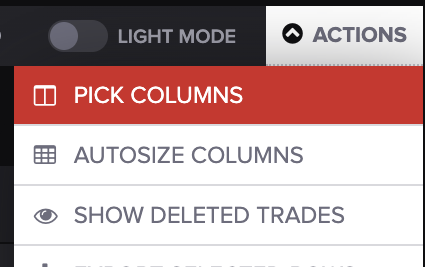
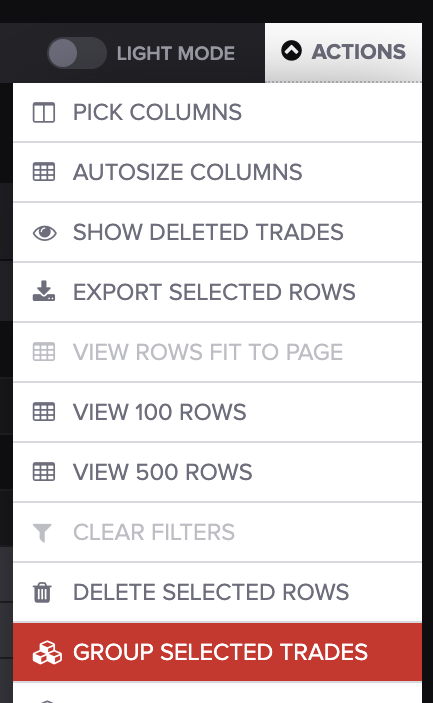
To group them manually, add the **MG.ID** column onto the **TRADES** screen. Select **PICK COLUMNS** from the drop-down **ACTIONS** menu.
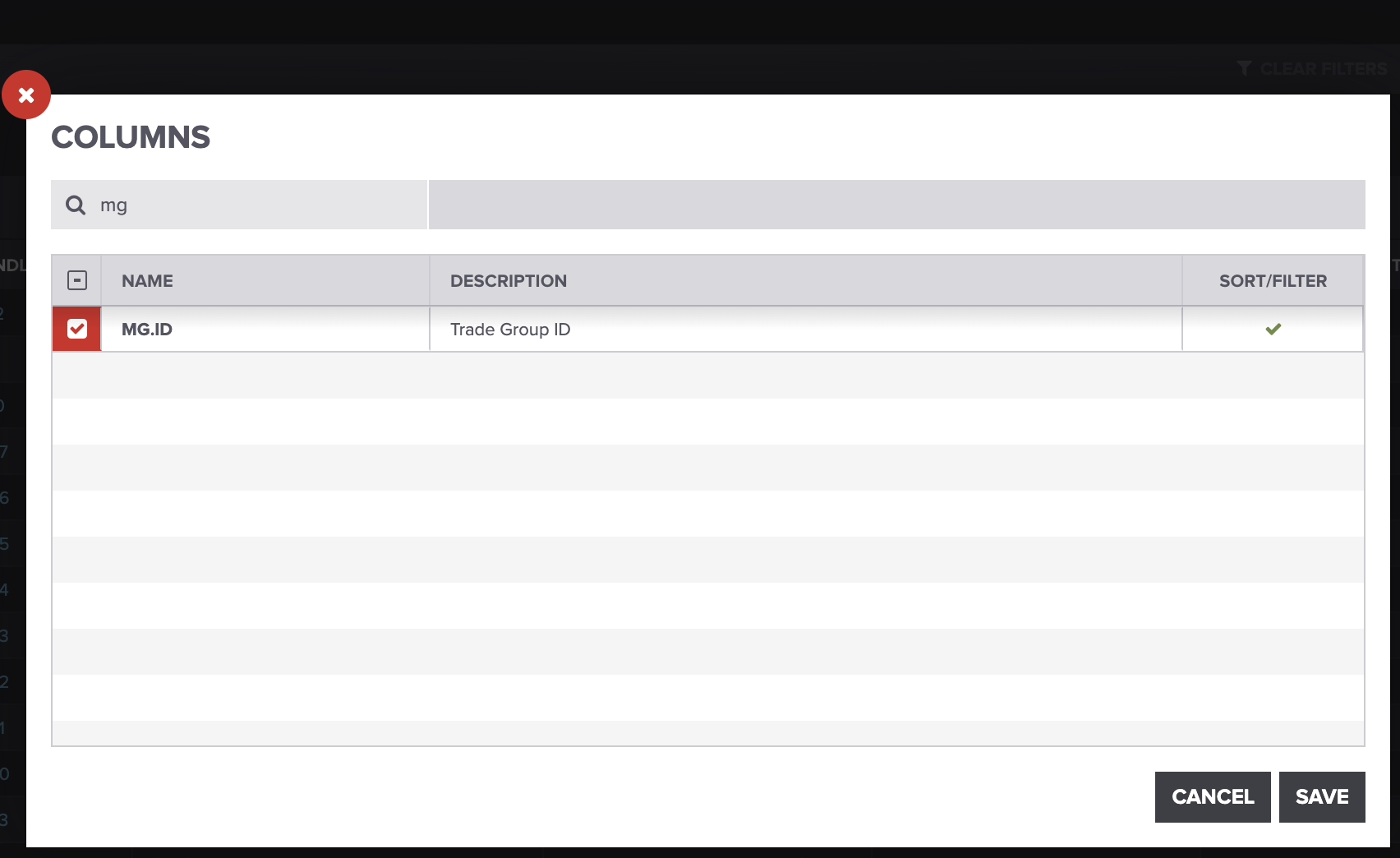
The following search screen should populate:
Type the **MG.ID** into the search bar, then check the **MG.ID** box. Press **SAVE** when you're finished. The column will populate on your **TRADES** screen.
Check out this [article](https://help.molecule.io/article/170-top-5-things-you-can-do-on-the-trades-screen) to learn how to drag columns and customize your trade table in Molecule.
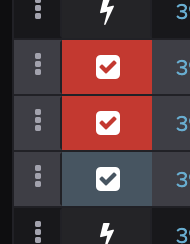
Next, hover your mouse over the commodity icon and check the boxes you want to group.
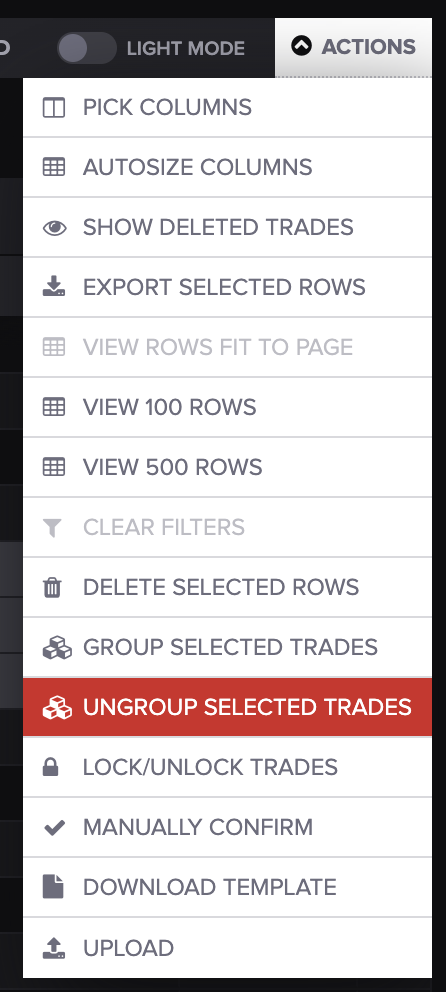
Then, go back to the **ACTIONS** menu and select **GROUP SELECTED TRADES.**
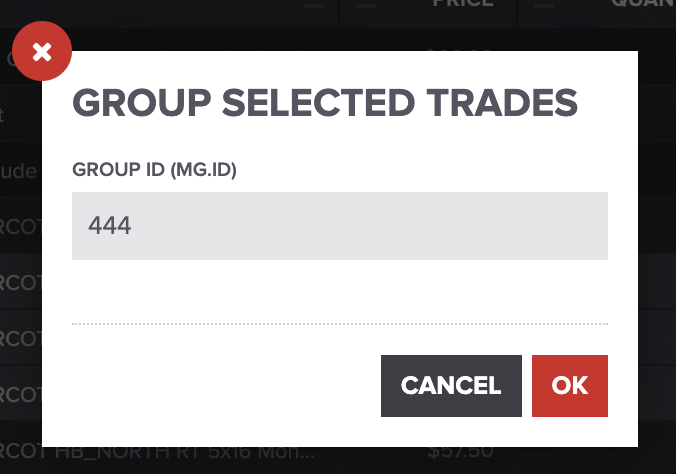
You'll be prompted to write your custom Group ID.
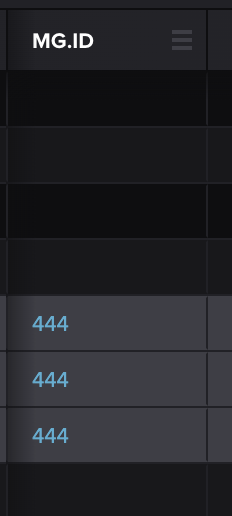
After you type your custom ID, you can view your group trades by their Group ID in the **MG.ID** column.
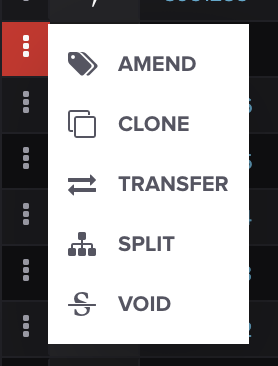
Once your trades are grouped, you can also [amend](https://help.molecule.io/article/162-amending-a-trade), [clone](https://help.molecule.io/core-functionality/core-features/specialized-features/trades/trade-amendments/how-to-clone-a-trade), [transfer](https://help.molecule.io/core-functionality/core-features/specialized-features/trades/trade-amendments/how-to-transfer-a-trade), [split](https://help.molecule.io/core-functionality/core-features/specialized-features/trades/trade-amendments/how-to-split-a-trade), or [void](https://help.molecule.io/core-functionality/core-features/specialized-features/trades/trade-amendments/how-to-void-a-trade) them after pressing the three dots on the left-hand side.
#### Ungrouping
To ungroup trades, check the boxes that you'd like to ungroup, then go to the **ACTIONS** drop-down menu and select **UNGROUP SELECTED TRADES.**