# How to Pivot and Group on the Valuations Screen
Once you've [created a view,](/core-functionality/core-features/specialized-features/trades/valuations-screen/how-to-use-the-valuations-screen.md) you can group and aggregate it for collapsible and expandable trade-level detail.
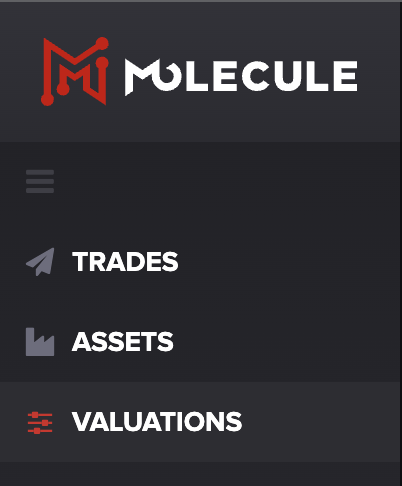
First, go to the **VALUATIONS** screen from the main menu.
#### Grouping on a Detailed View
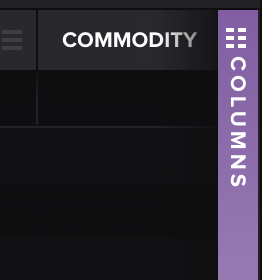
Once you're under your desired view, click on the purple column picker on the right-hand side of the screen.
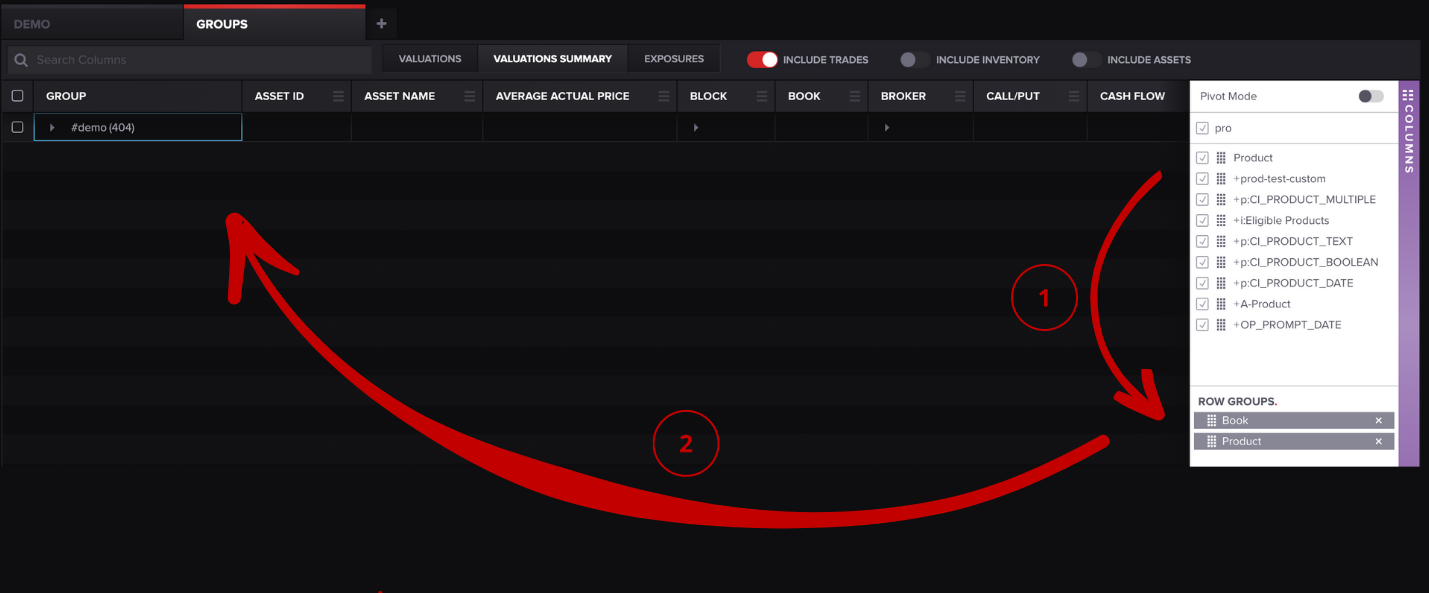
Then, you can choose the columns you'd like to include in your view.
**TIP**: You can scroll or use our search bar for quicker access.
Drag columns by holding down the grid symbol to the left of the name and moving them to the **ROW GROUPS** section. Once you do, a field should populate under your view tab, as shown above.
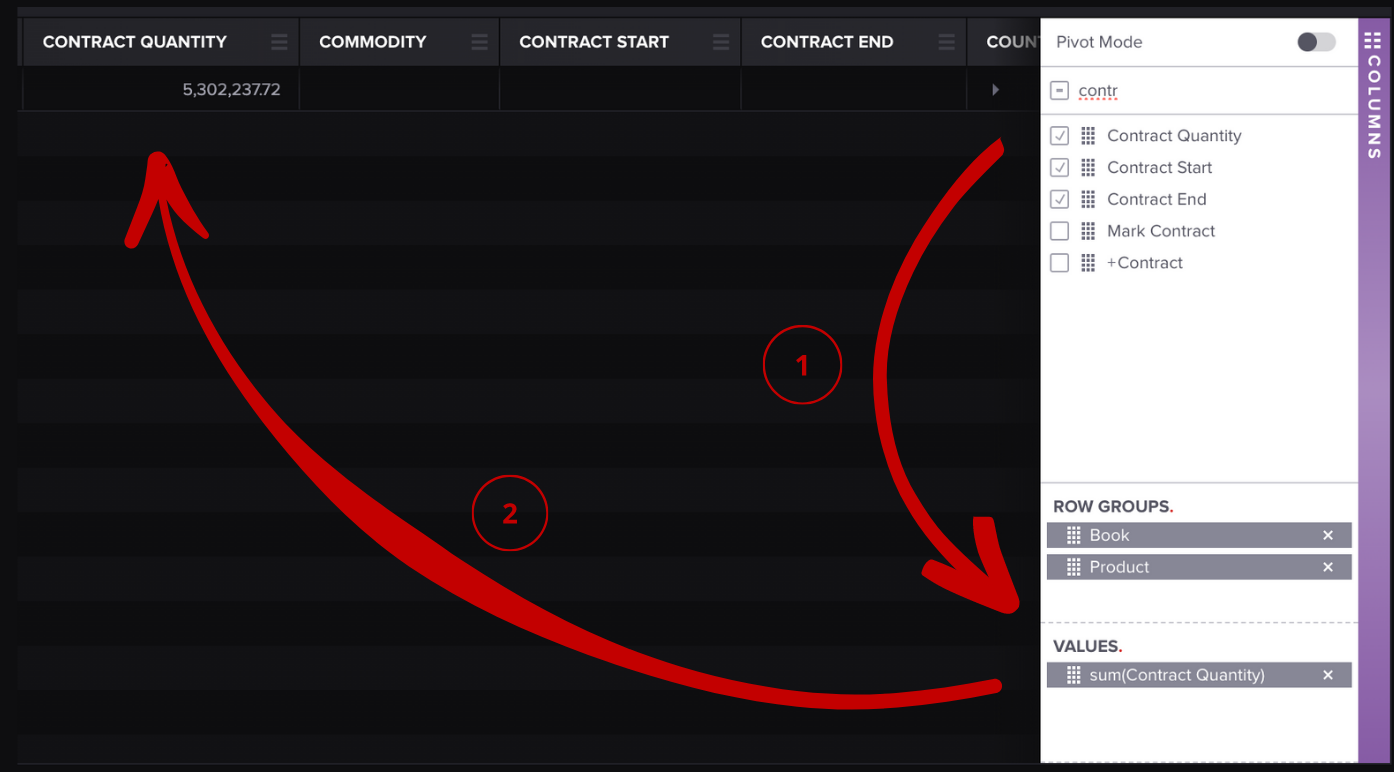
Once you've added columns under **ROW GROUPS,** you can add columns under the **VALUES** section.
As you drag the items, columns will be added to your table in Molecule.
**TIP**: If columns aren't appearing in the table, make sure the column check box is clicked on the column picker.
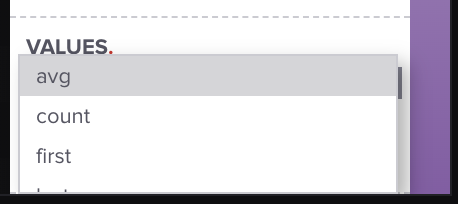
The default aggregation method is a summation. If you'd like to change the aggregation, click on the item in the column picker, i.e. **sum(Contract Quantity).**
A list should auto-populate, as shown below:
You can scroll and choose your desired aggregation method.
#### Pivot Mode
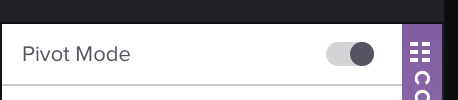
To pivot, toggle on **Pivot Mode** at the top of the column picture:
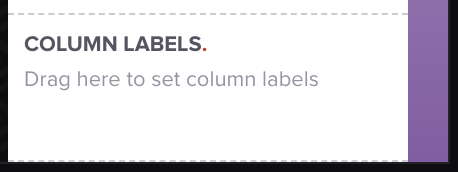
This **COLUMN LABELS** field should populate at the bottom of the column picker:
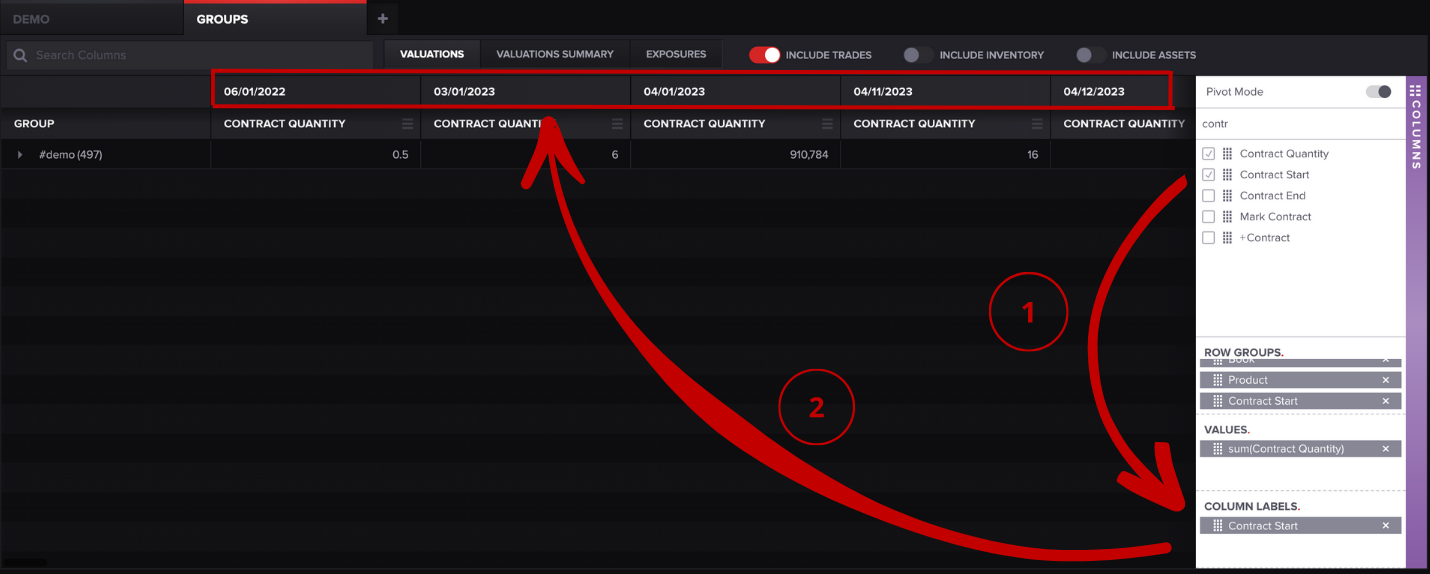
Once you've dragged your column label, it should populate at the top of your table, as shown below:
That's it! We hope this will save you some time. If you have any questions, please let us know at .
See related: [How to use the Valuations Screen](/core-functionality/core-features/specialized-features/trades/valuations-screen/how-to-use-the-valuations-screen.md).
---
# Agent Instructions: Querying This Documentation
If you need additional information that is not directly available in this page, you can query the documentation dynamically by asking a question.
Perform an HTTP GET request on the current page URL with the `ask` query parameter:
```
GET https://help.molecule.io/core-functionality/core-features/specialized-features/trades/valuations-screen/how-to-pivot-and-group-on-the-valuations-screen.md?ask=
```
The question should be specific, self-contained, and written in natural language.
The response will contain a direct answer to the question and relevant excerpts and sources from the documentation.
Use this mechanism when the answer is not explicitly present in the current page, you need clarification or additional context, or you want to retrieve related documentation sections.