# How to Connect Your Spreadsheet
If you use spreadsheets to monitor trading activity, you can connect them to Molecule via our API. This will save a lot of time as it removes the tedium of updating your file and automates the process. You can use one of our sample files (available by emailing [support@molecule.io](https://help.molecule.io/article/support@molecule.io)), start one from scratch. Connect your existing spreadsheet using the instructions below. This article assumes you are using **Excel 2016**.
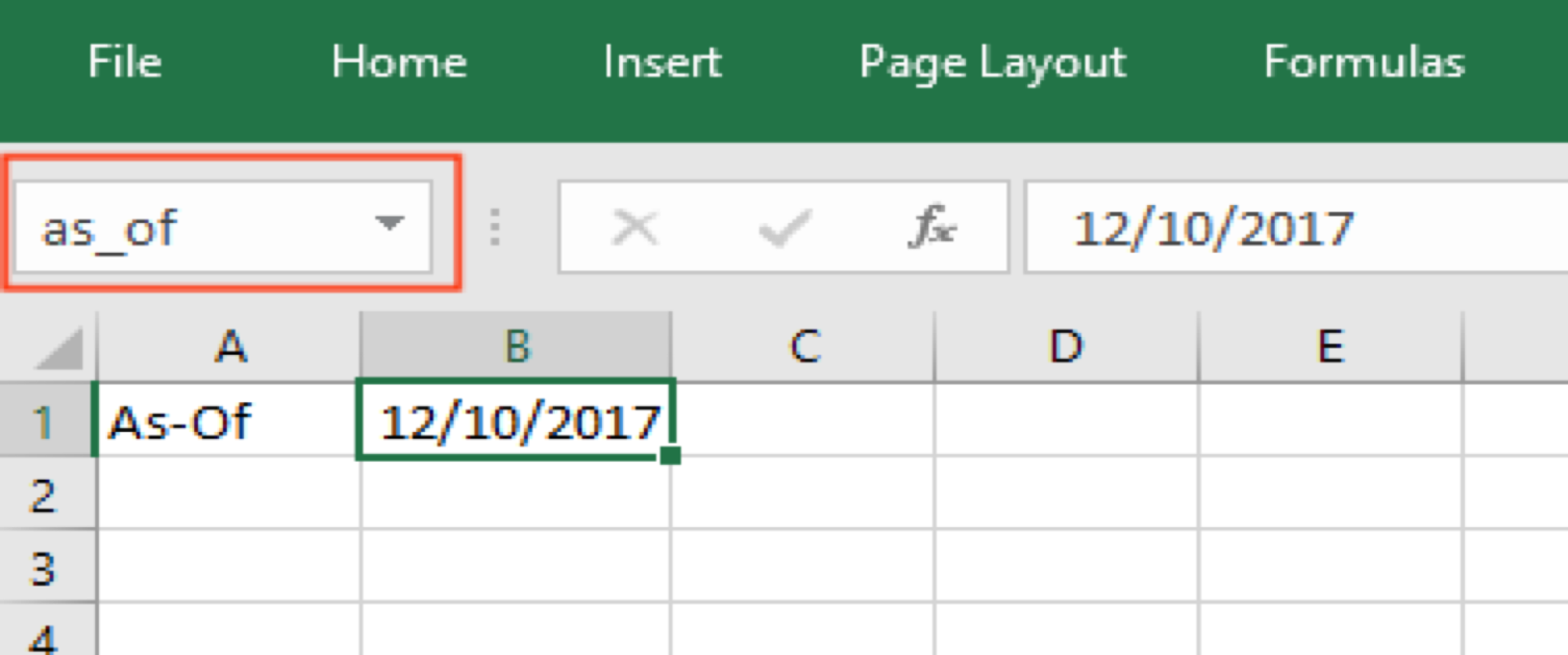
* On your spreadsheet, select a designated cell where you would like to input an As-Of date to refresh the values on the spreadsheet. Change the label of this cell to **as\_of** in the top left text box underneath **File**. Populate this cell with a date value for now (ex: 12/10/2017)
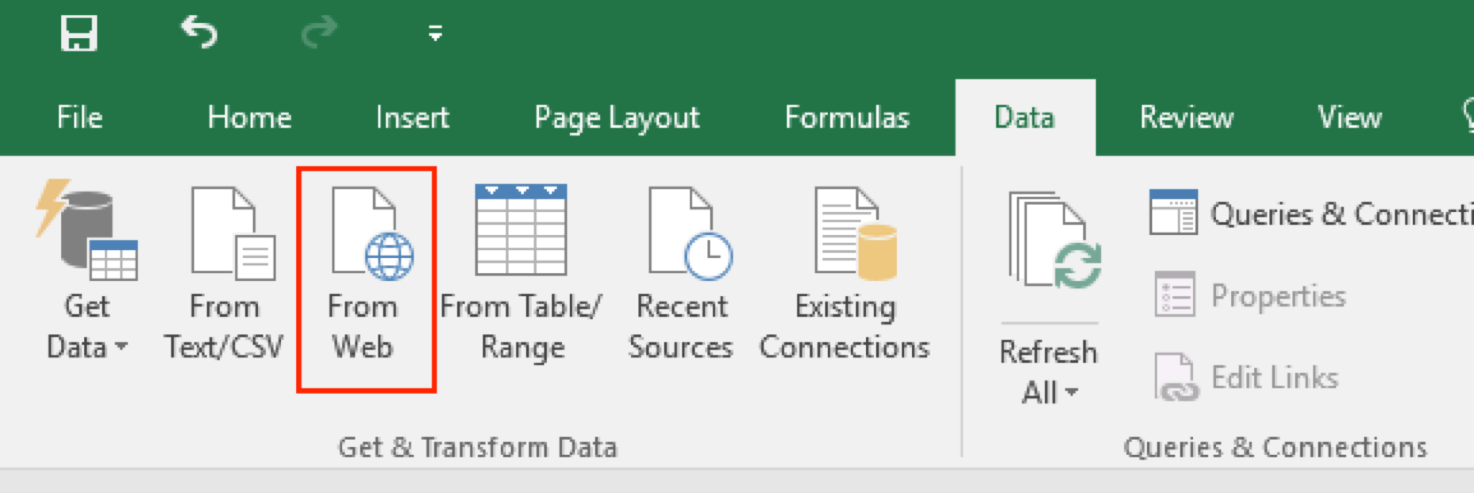
* Click on **Data** < **From Web** (Under **Get & Transform Data**):
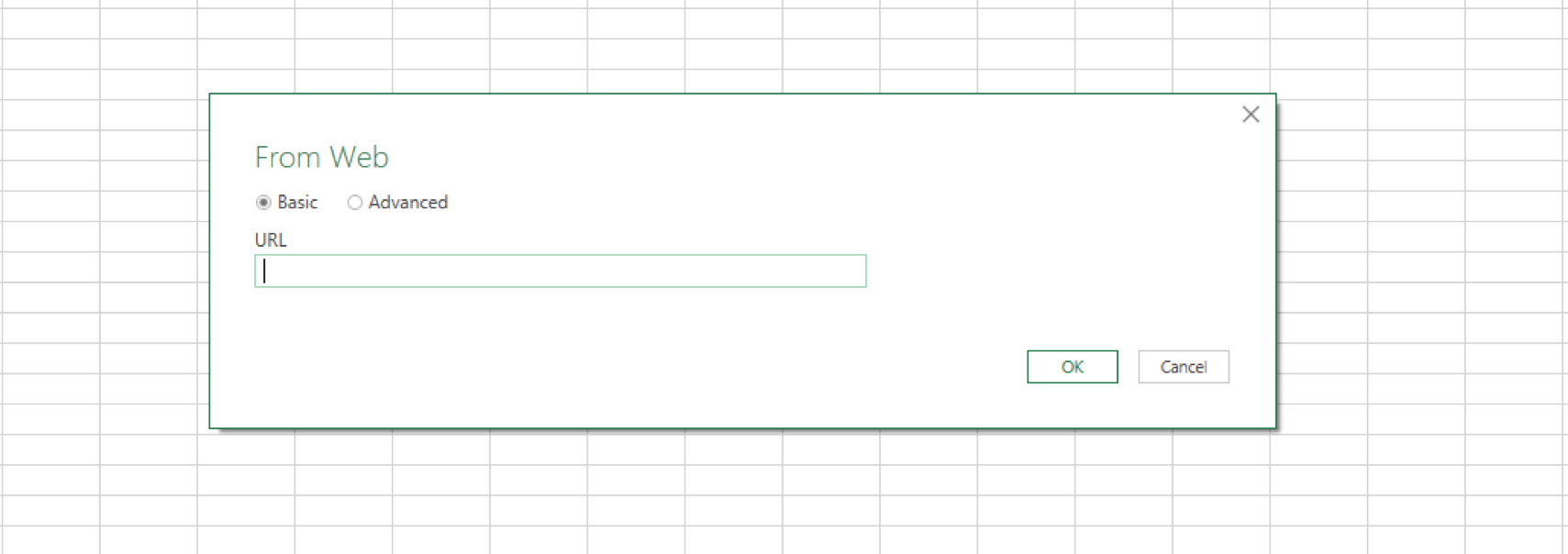
* A pop-up will appear asking for a URL:
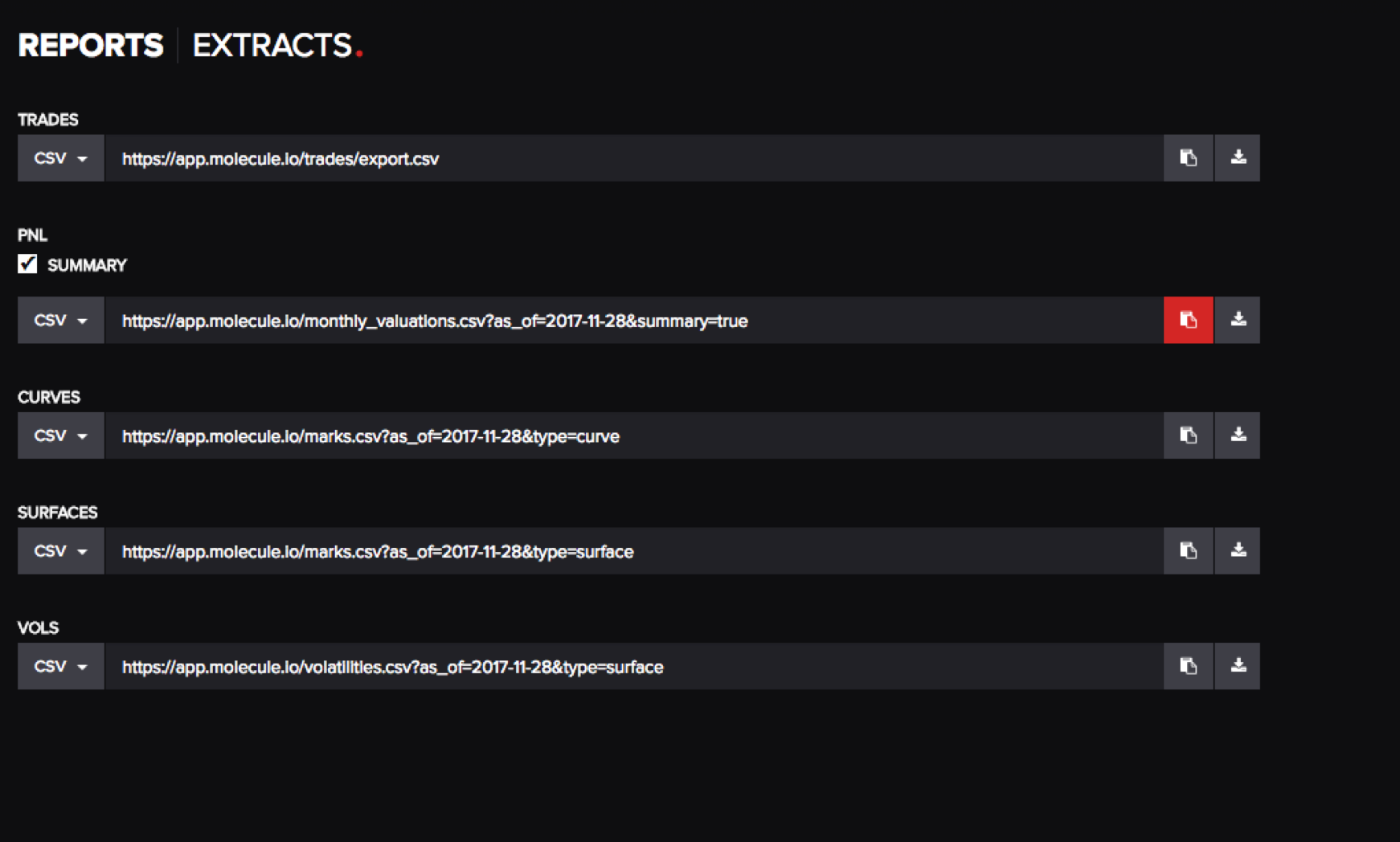
* From your Molecule account, click on **REPORTS** < **EXTRACTS**
* Under **P\&L,** check the summary box and click on the copy icon, highlighted red below (if you would like the complete version of the P\&L extract, leave the summary box unchecked):
* Paste the URL into the excel pop-up and click **OK.**
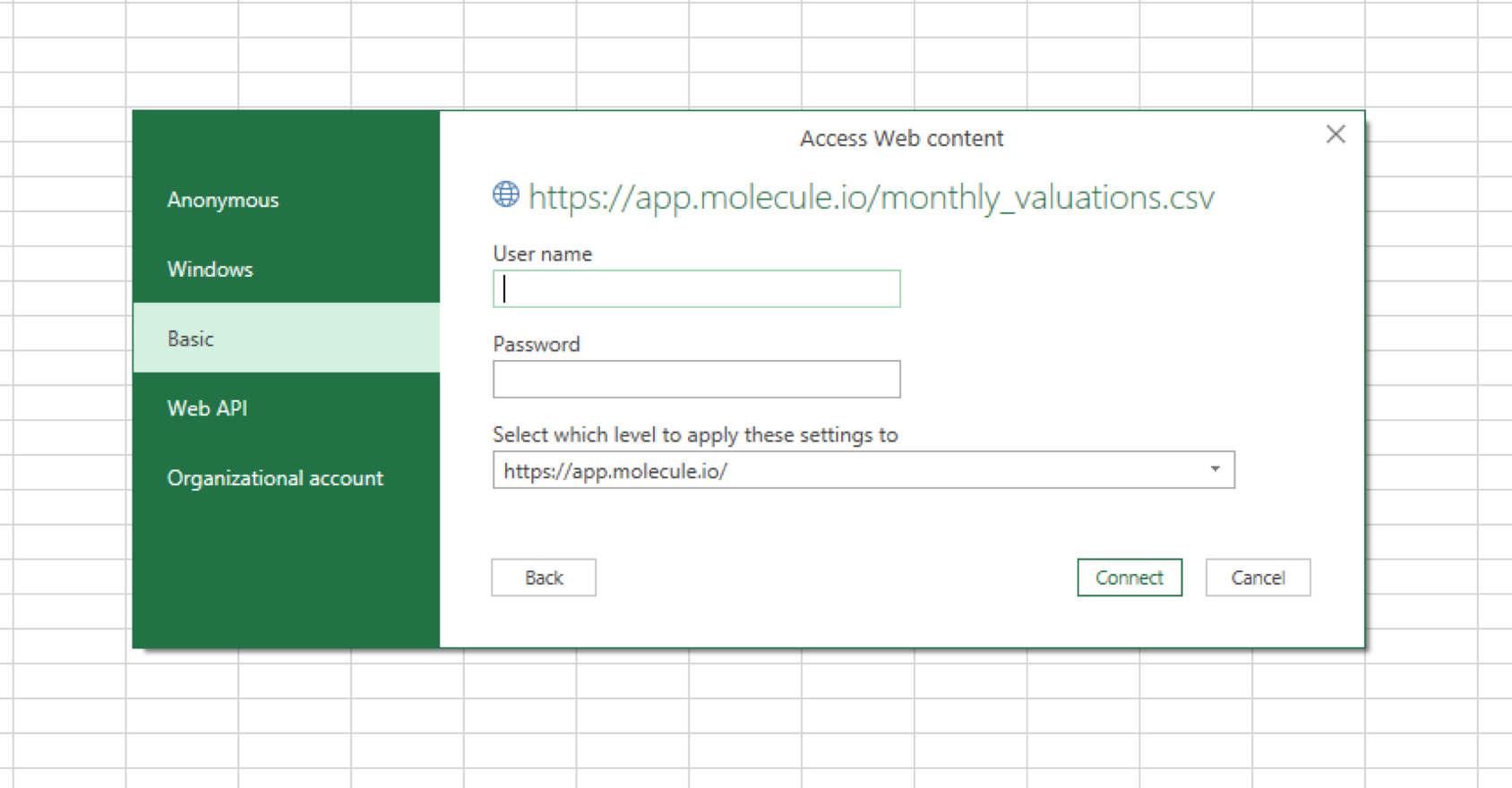
* A pop-up will appear titled **Access Web Content**. Click on **Basic** on the left pane of the pop-up and enter your Molecule credentials
* The username is the email address you use to sign into Molecule
* Password will be your token from Molecule
* To access click **Settings** < **API Key**
* If you still need to, generate a token
* You also can revoke and generate a new one if you have lost your token
* Then click **Connect**:
* A new pop-up will appear showing your trade details, then click **Load.**
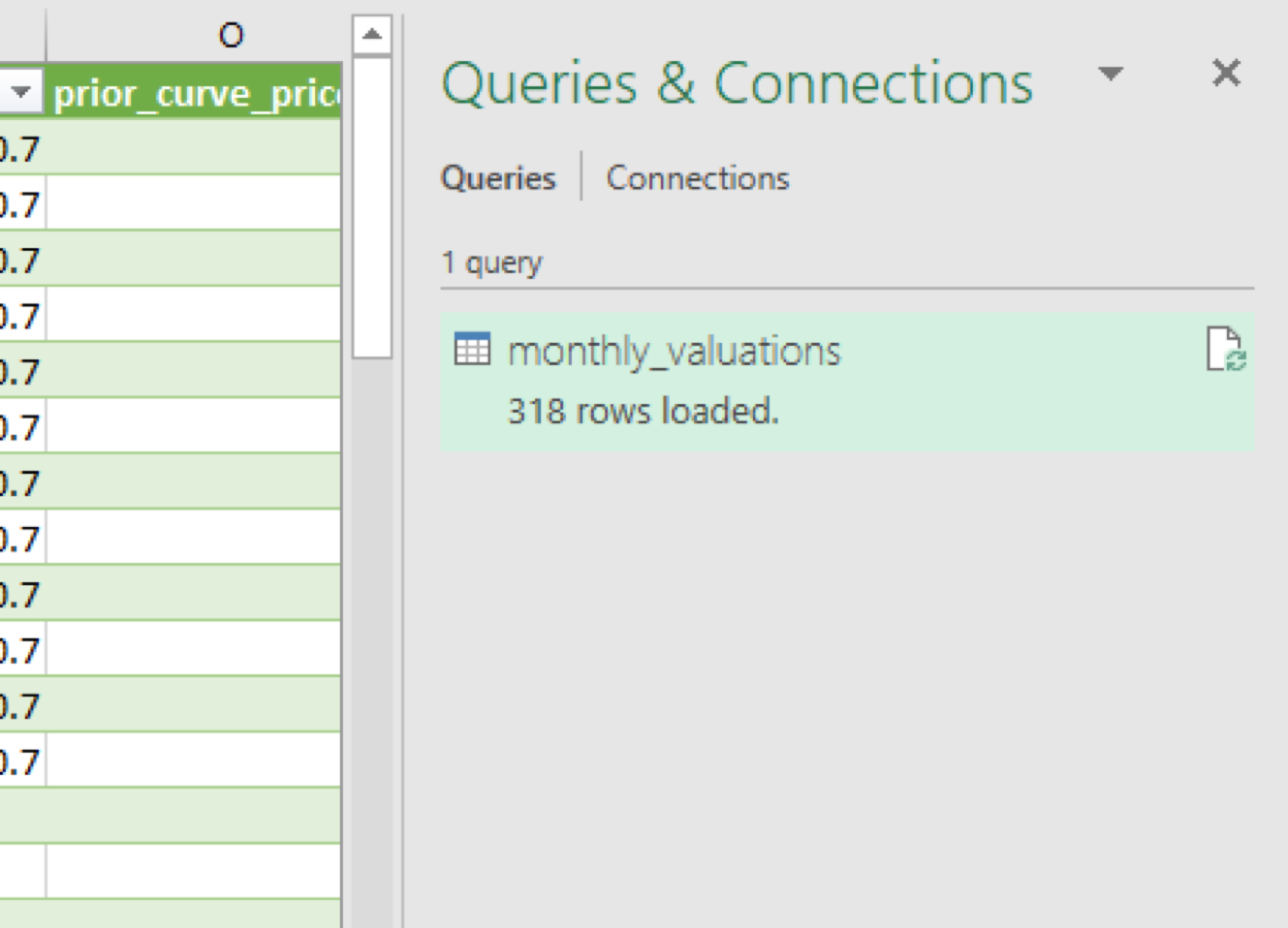
* Your P\&L extract will now be loaded to a new tab in the spreadsheet, and a pane titled **Queries & Connections** will appear on the right:
* Right-click on **monthly\_valuations** under **Queries & Connections** and select **Edit** to open the Query Editor in a separate window
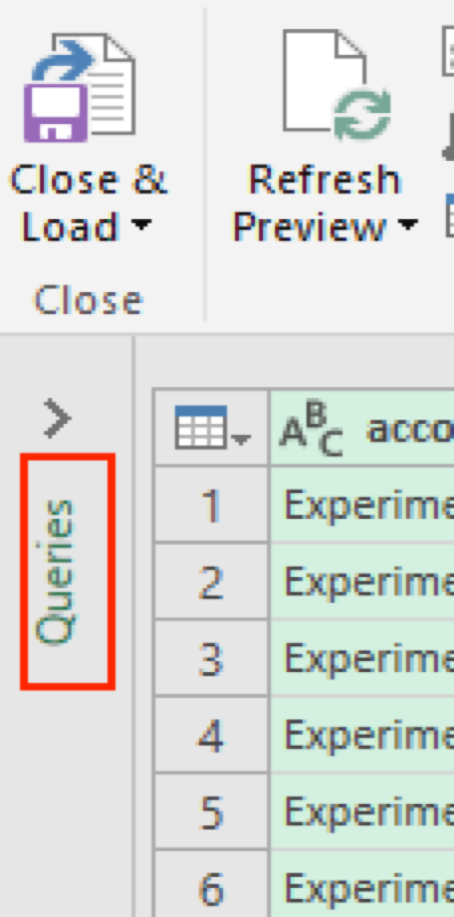
* Click on **Queries** (highlighted red) at the top of the left pane:
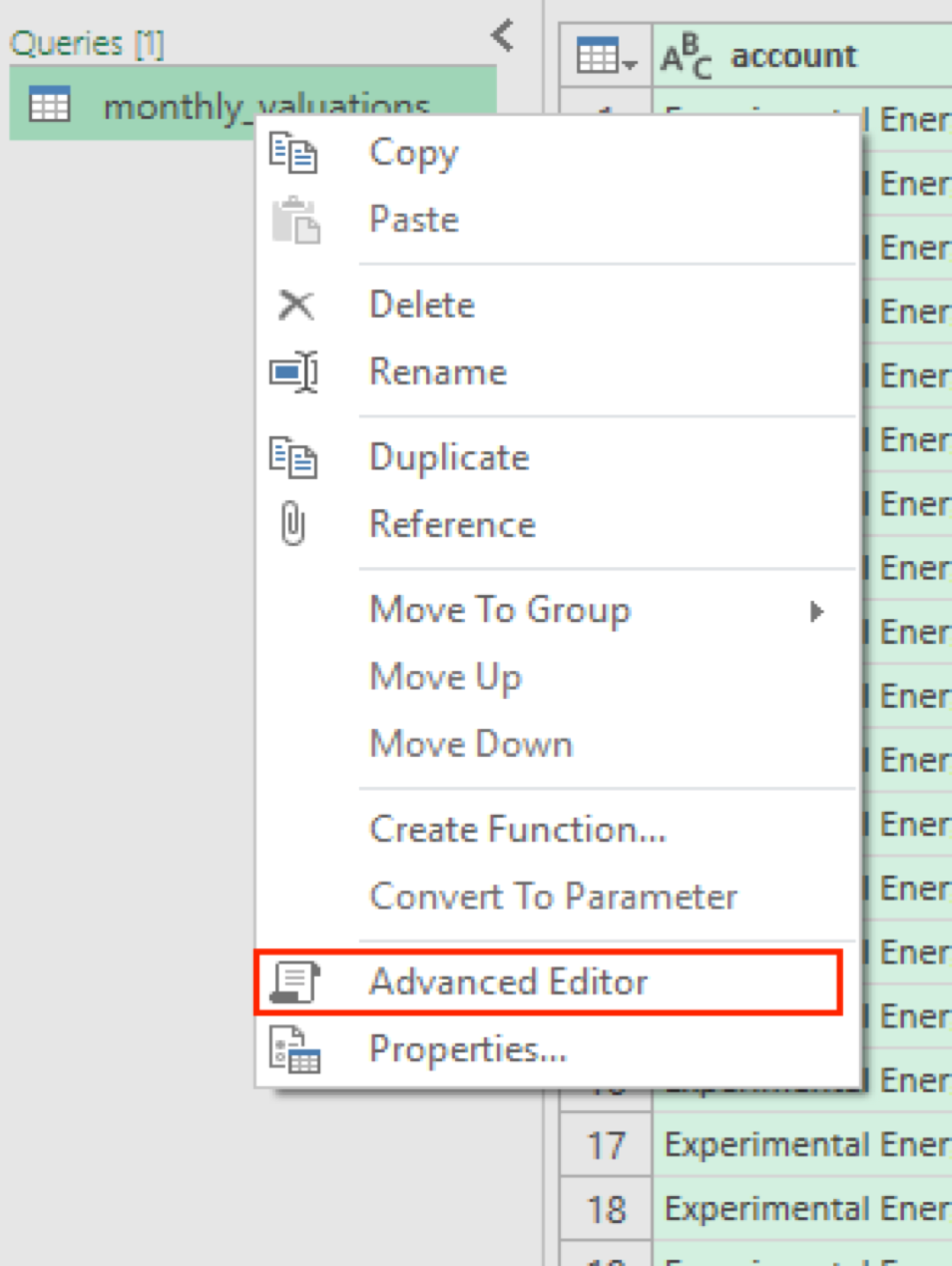
* Right-click on **monthly\_valuations** and rename it to **Molecule Query**. Right-click on **Molecule Query** once more and select **Advanced Editor**:
* Remove the existing query in the **Advanced Editor** and copy/paste the following query:
```
let
Datey = GetValue("as_of"),
Url = "https://app.molecule.io/monthly_valuations.csv?show_aggregated=false&as_of="
& Datey &"&summary=true",
Source = Csv.Document(Web.Contents(Url),[Delimiter=",", Columns=20, Encoding=1252,
QuoteStyle=QuoteStyle.None]),
#"Promoted Headers" = Table.PromoteHeaders(Source),
#"Changed Type" = Table.TransformColumnTypes(#"Promoted Headers",{{"account", type text},
{"as_of", type date}, {"book", type text}, {"counterparty", type text}, {"direction", type text},
{"product_code", type text}, {"contract_start", type date}, {"call_put", type text},
{"strike", type text}, {"position", Int64.Type}, {"delta", Int64.Type}, {"mtm_change", type number},
{"base_currency_mtm_change", type number}, {"curve_price", type number},
{"prior_curve_price", type number}, {"deal_type", type text}, {"frequency", type text},
{"realization_date", type date}, {"status", type text}, {"explanation", type text}})
in
#"Changed Type"
```
* \*NOTE\*: If you copied the link for the complete P\&L extract, use the query below:
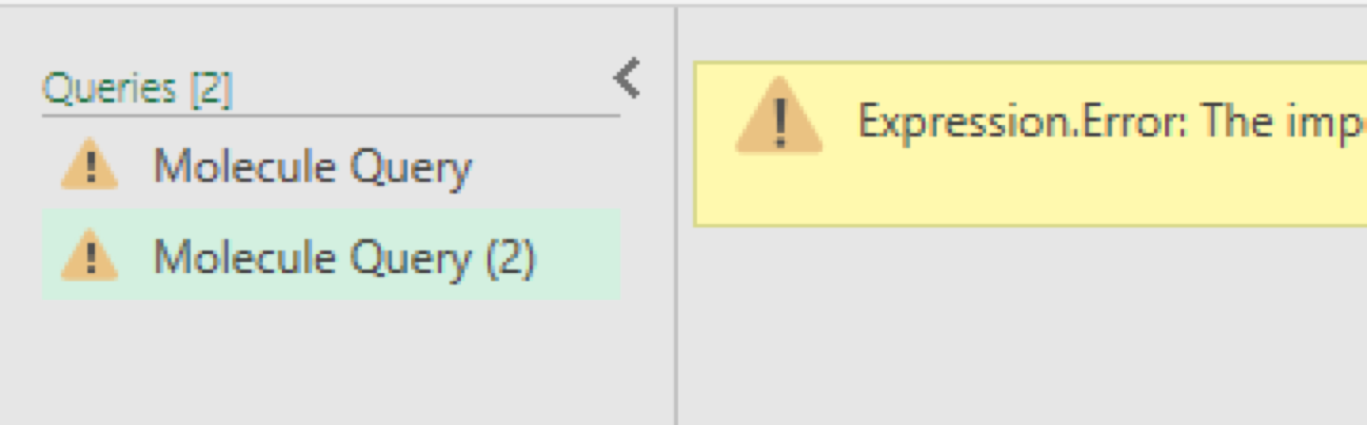
* Select **Done** on the Advanced Editor window where you pasted the query. You will receive an **Expression Error** - this is expected.
* Right-click on **Molecule Query** on the same left pane and select **Duplicate.** You will now see a second query populate on the left pane titled, **Molecule Query(2)**:
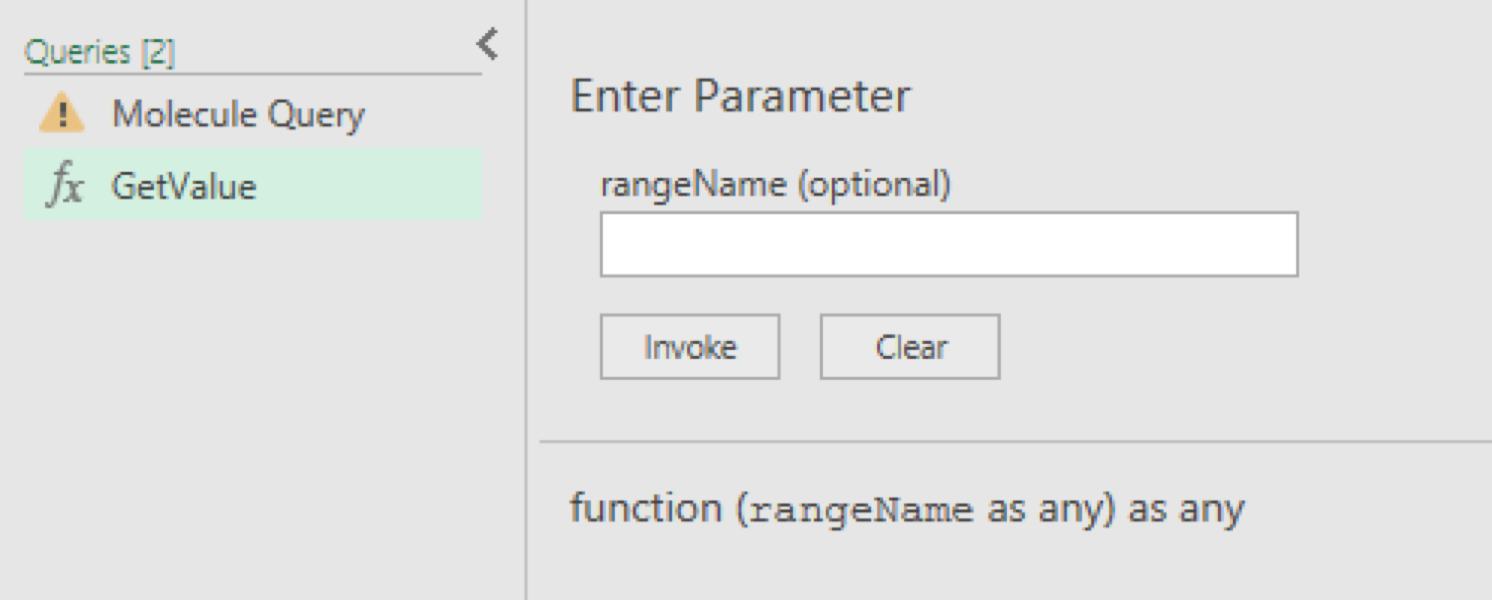
* Right-click on **Molecule Query (2)** and rename it to **GetValue**. Right-click on **GetValue** once more and select **Advanced Editor.** Remove the existing query, copy/paste the following query and select **Done**:
```
let GetValue=(rangeName) =>
let
name = Excel.CurrentWorkbook(){[Name=rangeName]}[Content],
value = name{0}[Column1]
in
DateTime.ToText(value, "yyyy-MM-dd")
in GetValue
```
* You should see a field appear that says **Enter Parameter** - you can just ignore this.
* When you single-click on **Molecule Query**, you should now see a notification that says: "**Information is required about data privacy**:
* Select **Continue.**
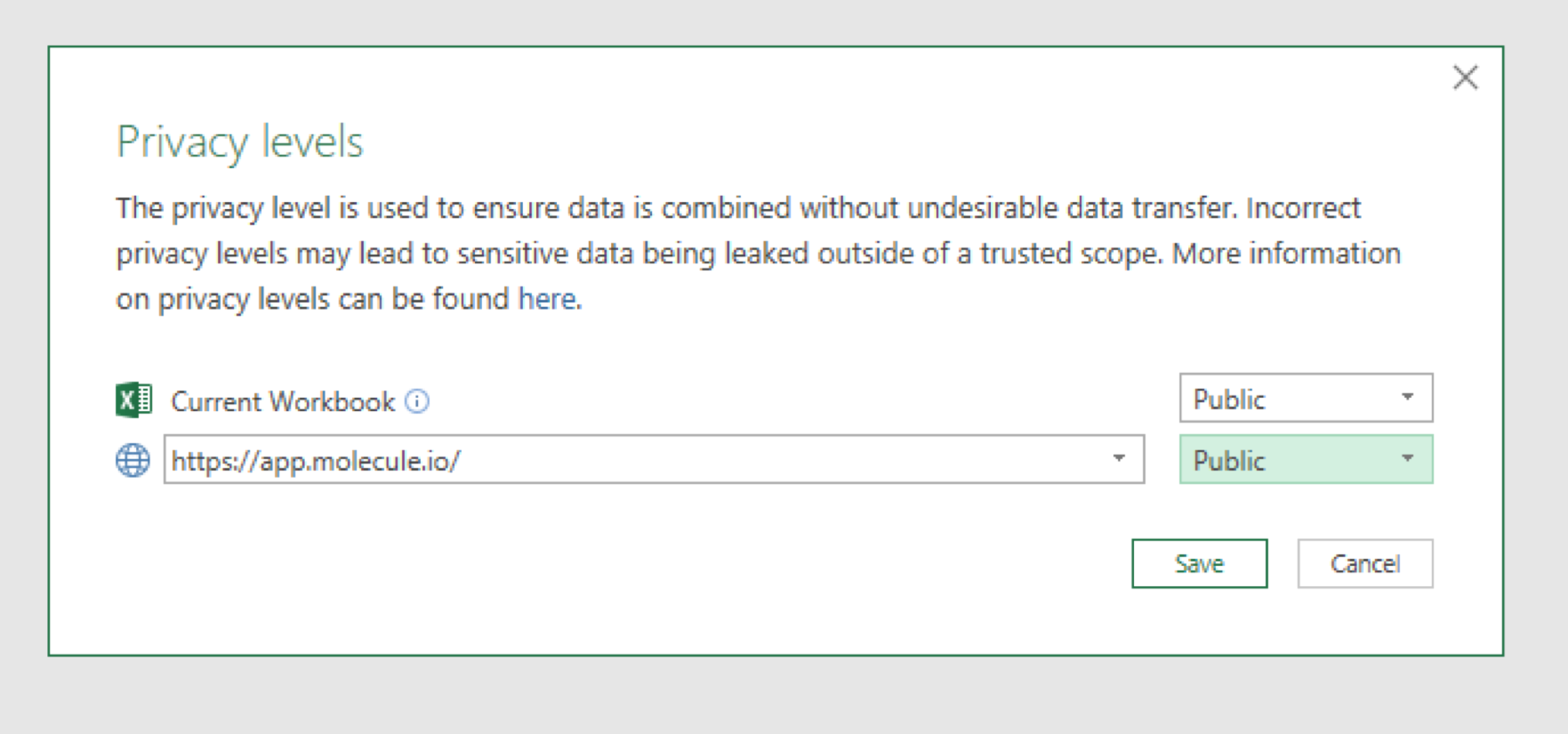
* You should see a pop-up titled **Privacy Levels**:
* Click on the drop-down menu in the pop-up next to **Current Workbook** and select **Public**. (This means public to your company only). Click on the drop-down menu right underneath, next to , and select **Public**. Then select **Save**.
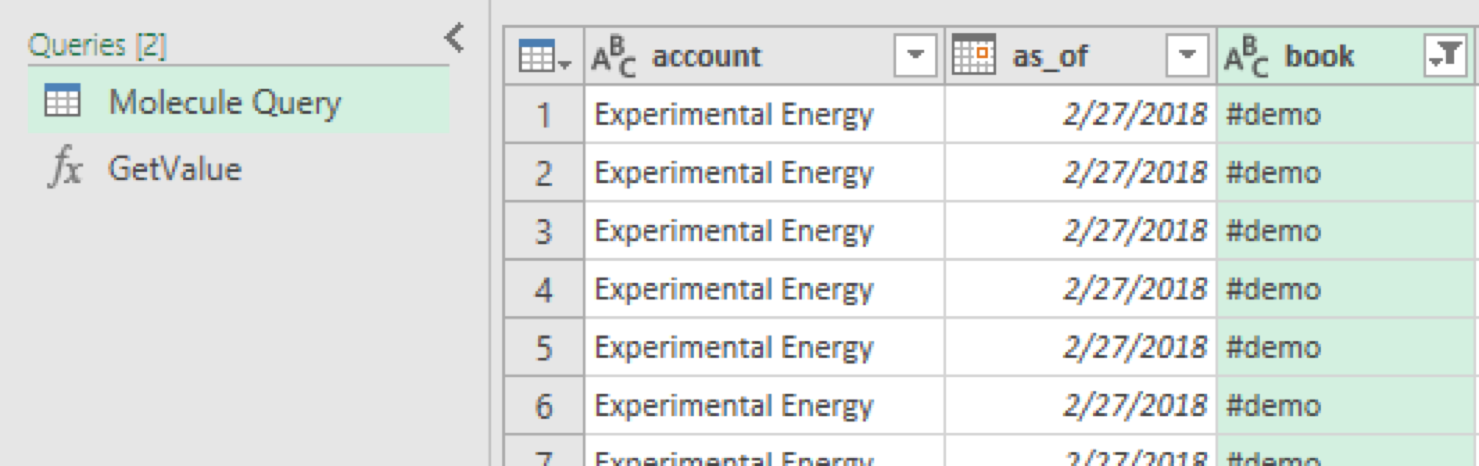
* You should now see a table show up under **Molecule Query**:
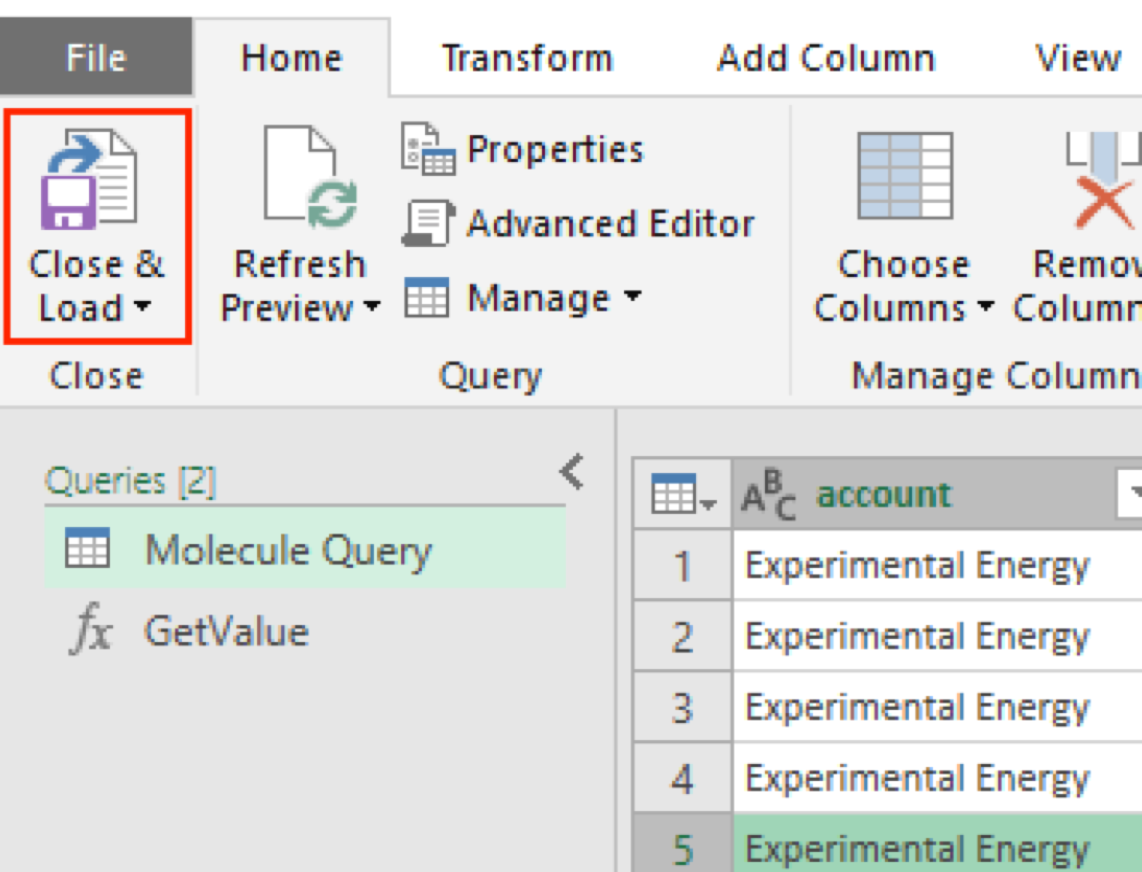
* Select "Close & Load" on the top left corner:
**Note:** You can now update your designated as\_of field to any as\_of date you'd like to see your values for, and then click on **Refresh All** under the data tab:
The data will now load in a new tab on your spreadsheet. You can pivot to see things how you would like. You can also use Excel formulas to calculate metrics, such as position and P\&L, that will refresh based on the as-of date value you used. The spreadsheet can be set up to refresh automatically in a given interval as well. You are not limited to using just the P\&L extract. You can use the curves extract to have your market data reflected on your spreadsheet, for example. The possibilities are endless! If you have any questions, please send them our way at .