# How to Import Market Data (Curves)
Market data is loaded using contract START date, not contract end date.\
However, hours and other time intervals in market data should use the END of the hour or time interval, e.g. HE0800 is the hour from 7:00-8:00.
If you would like to upload market data, you can do so by importing an Excel spreadsheet.
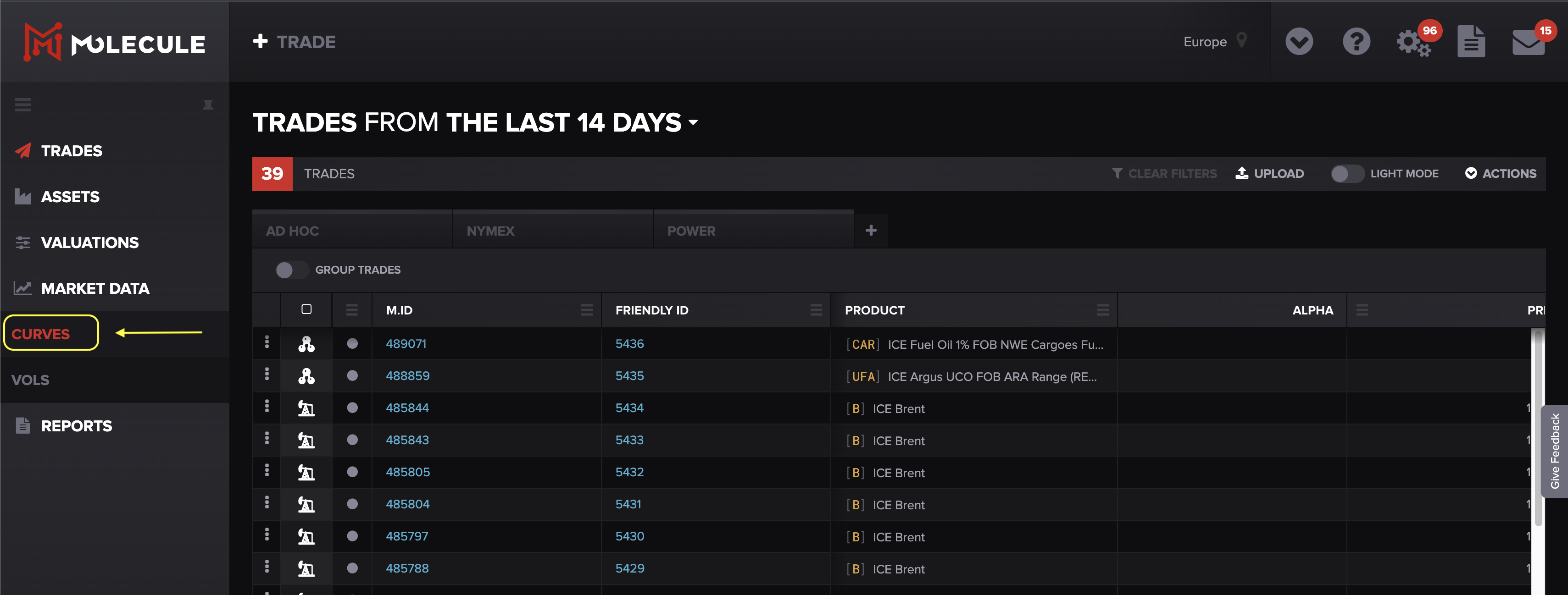
Start by navigating to the Curves screen:
First, click on the **MARKET DATA** tab on the left-hand menu, then select **CURVES:**
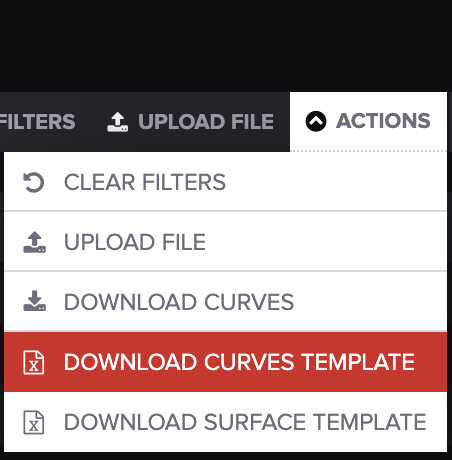
Once you are on the Curves screen, look for the Actions menu in the top right corner.
Under the **ACTIONS** menu, select **DOWNLOAD CURVES TEMPLATE:**
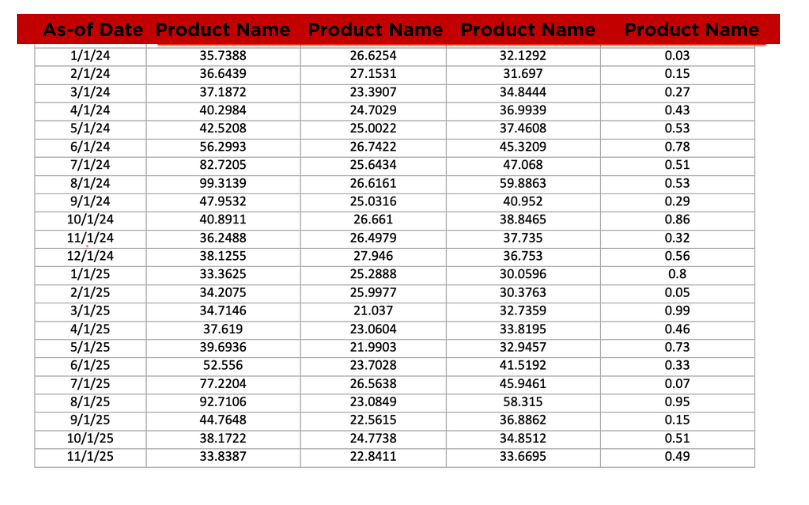
Fill in your product names/codes, as-of date, and marks for as many products as you need. The final results should look something like this:
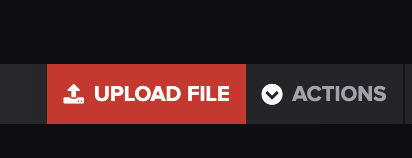
Then select:
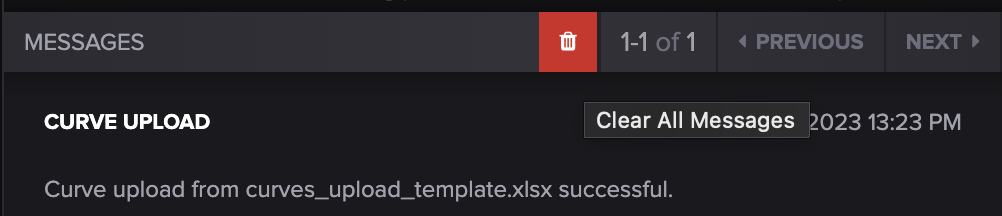
Once your file uploads, you'll receive a notification under the **MESSAGES** tab:
The message will indicate if your upload was successful or if there is an error:
Make sure to delete your message when you're finished so there's no confusion with future uploads.
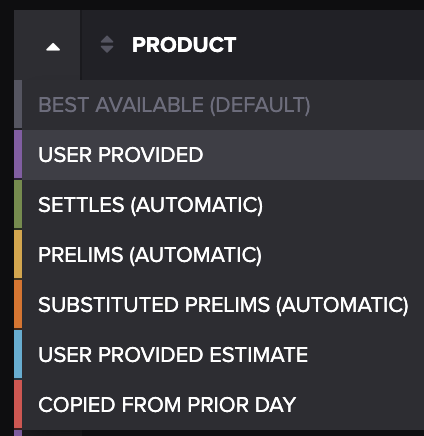
To see your upload, click the drop-down menu on the far left. This menu should populate:
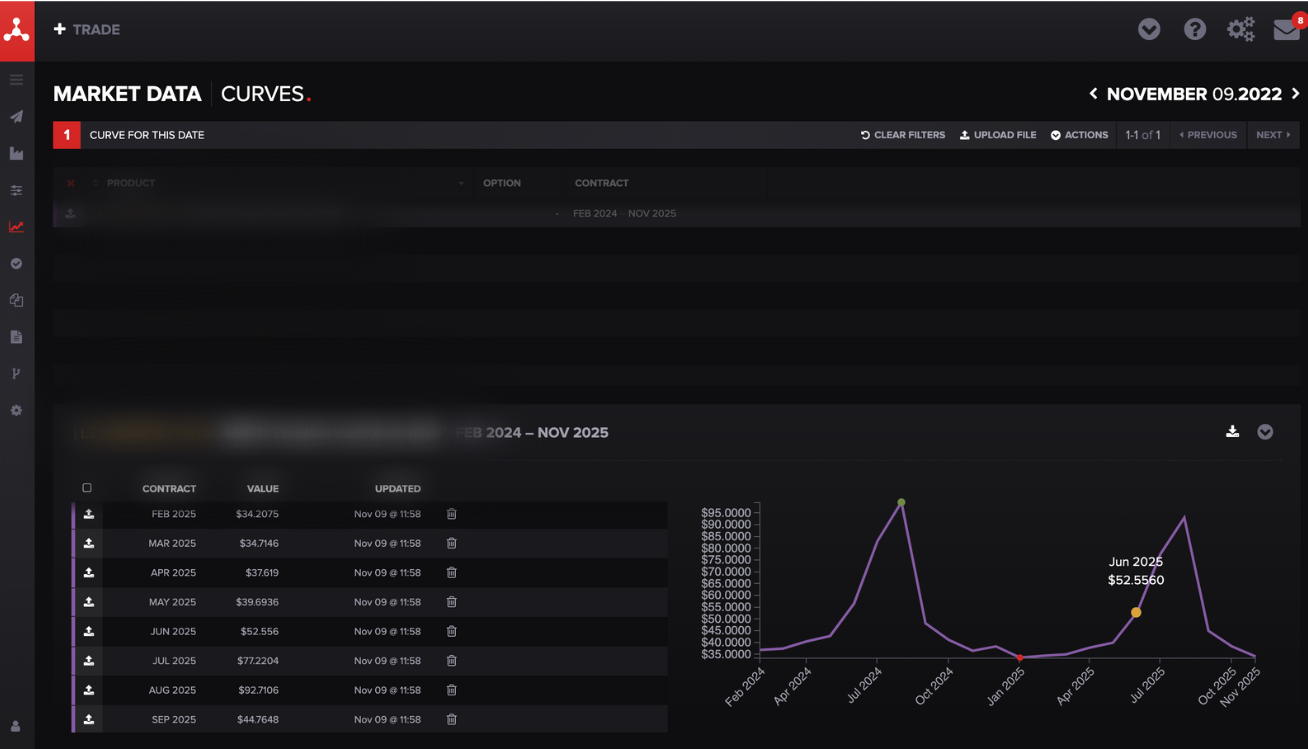
You'll be able to see your imported marks/curves by selecting the **USER PROVIDED** option in the drop-down menu or the light blue **USER PROVIDED ESTIMATE** if the term "estimate" is found in the filename:
You may include multiple tabs, and they should all be parsed
That's it! If you have issues or questions, feel free to send them our way at .
---
# Agent Instructions: Querying This Documentation
If you need additional information that is not directly available in this page, you can query the documentation dynamically by asking a question.
Perform an HTTP GET request on the current page URL with the `ask` query parameter:
```
GET https://help.molecule.io/onboarding/welcome-and-getting-started/how-to-import-market-data-curves.md?ask=
```
The question should be specific, self-contained, and written in natural language.
The response will contain a direct answer to the question and relevant excerpts and sources from the documentation.
Use this mechanism when the answer is not explicitly present in the current page, you need clarification or additional context, or you want to retrieve related documentation sections.