Adding and Inviting New Users in Molecule
Last updated: July 1, 2026
Adding a new user to Molecule is quick: you create the user, Molecule emails them an invitation automatically, and they set up their own login. This guide walks through the whole flow — what to have ready, how to give the new user the right access efficiently, and the few things that commonly trip admins up (expired invite links, rejected invites, and the fact that there's no "copy this user" button). You'll need an admin role to add users.
Not covered here:
Resetting a password, or an account that's locked → see "Molecule Password Policy."
What each permission unlocks (the full matrix) → see "Permissions."
Deactivating or offboarding a user → see the user-deactivation article.
Setting up SSO itself → out of scope; this article only notes how the invite flow differs when SSO is already on.
Before you add a user
Two things make this go smoothly:
Their email address — on an allowed domain. Some accounts restrict which email domains can be invited (more on that under Troubleshooting). For a standard company address this is a non-issue; it matters mainly for contractors or external collaborators on a different domain.
Which access they should have — decided up front. The easiest way to get this right is to mirror an existing user: note which group(s) that person is in (a group is a named set of users who share a defined set of access), and plan to add the new user to the same ones. More on this under "Give them the right access."
Add and invite the user
In the Users area (under Access Control):
Click Create User (the add-user button).
Enter the new user's name , email address , and job title .
Open the Permissions tab and assign one or more roles (a role is a bundle of permissions). You can refine access afterward — see the next section.
Click Save .
That's it on your side. Molecule automatically sends an invitation email to the address you entered — you don't need to send anything yourself. Tell the new user to expect it (and to check their spam folder). To finish, they click the link in the email, accept the invitation and set up their own credentials; after that they can log in.
If your account uses SSO, the flow is different — and simpler. (SSO, or single sign-on, lets people log in through your company's own identity provider — for example, Okta or Microsoft Entra ID — instead of a separate Molecule password.) Invited users don't go through the accept-and-set-credentials steps: the invitation is accepted automatically, and the user simply goes to the Molecule login page and authenticates through your identity provider. Their account is ready right away — so there's no acceptance email to wait on.
The Create User dialog
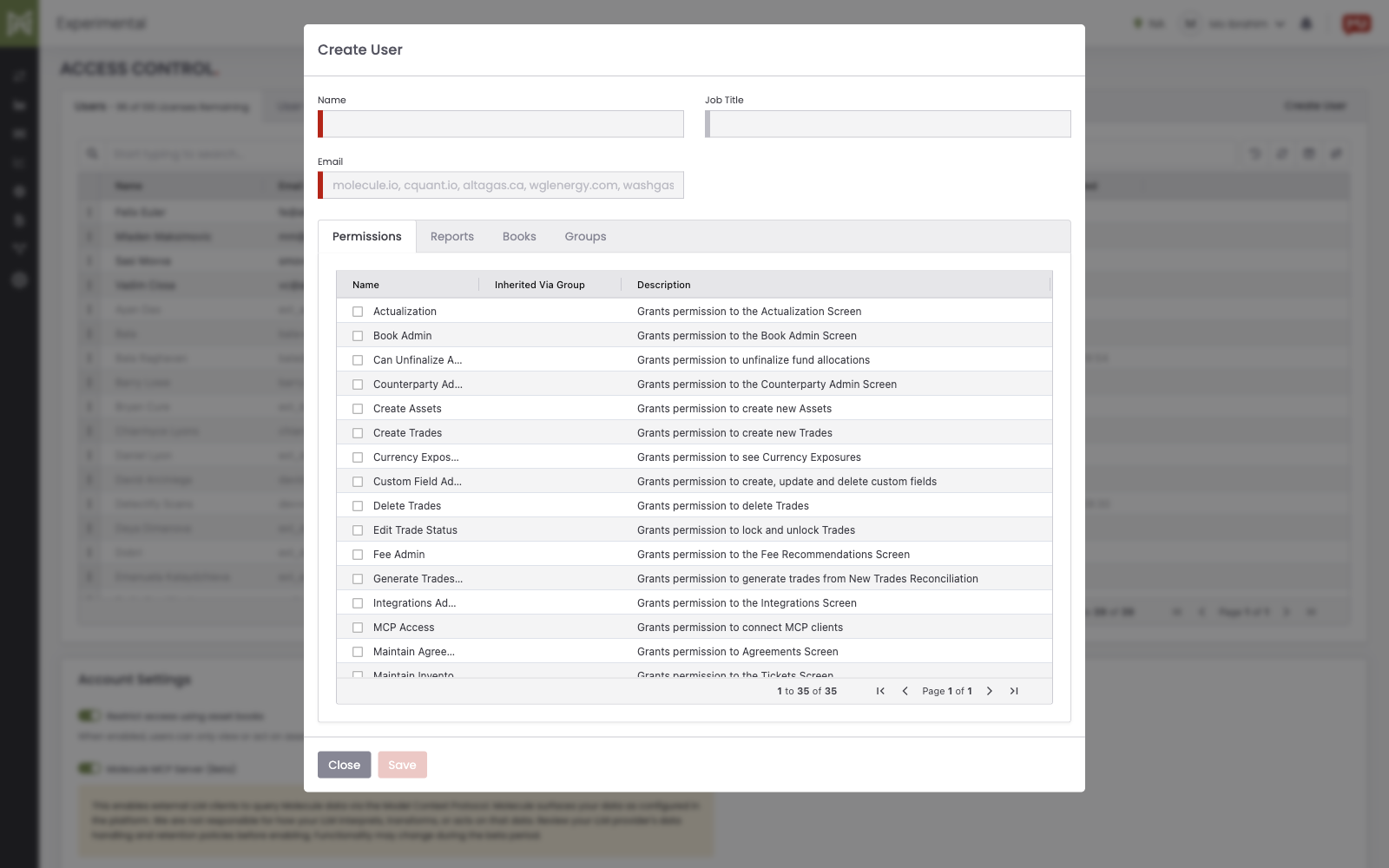
Create the user with their name, email, and job title, then assign roles on the Permissions tab — Molecule emails the invitation automatically on Save.
Give them the right access
Use groups — there's no "copy this user" button. Molecule has no feature that clones one user's permissions onto another; if you replicate access by hand, you have to reproduce it field by field. The better way is groups: add the new user to the same group(s) as your reference user, and they inherit that group's access — including its report access — without any hand-copying. This is the real answer to "can I just clone Jane's setup?" — put the new user in Jane's groups.
A few things worth knowing:
Group access is additive. A user's effective access is their individual permissions plus everything inherited from every group they belong to. Adding someone to a group only ever adds access — it never removes what they already have.
Group permissions do not depend on book access. Adding a user to a group grants that group's roles immediately, whether or not the user has access to any books. (Correction: the original article claimed a user needs access to at least one book for group permissions to "take effect," and that they can otherwise "silently fail to apply." That is inaccurate and has been removed.) A separate account setting — "Restrict access using asset books" — limits which assets a user can see or act on, but it has no bearing on whether a group's roles apply.
To add a user to a group: open the group from the Users area, add the user from the account's user list, and save — they inherit the group's access immediately. For what each individual permission unlocks, see "Permissions"; for how groups work in more depth, see "Access Control - Users and Groups."
Adding a user to a group
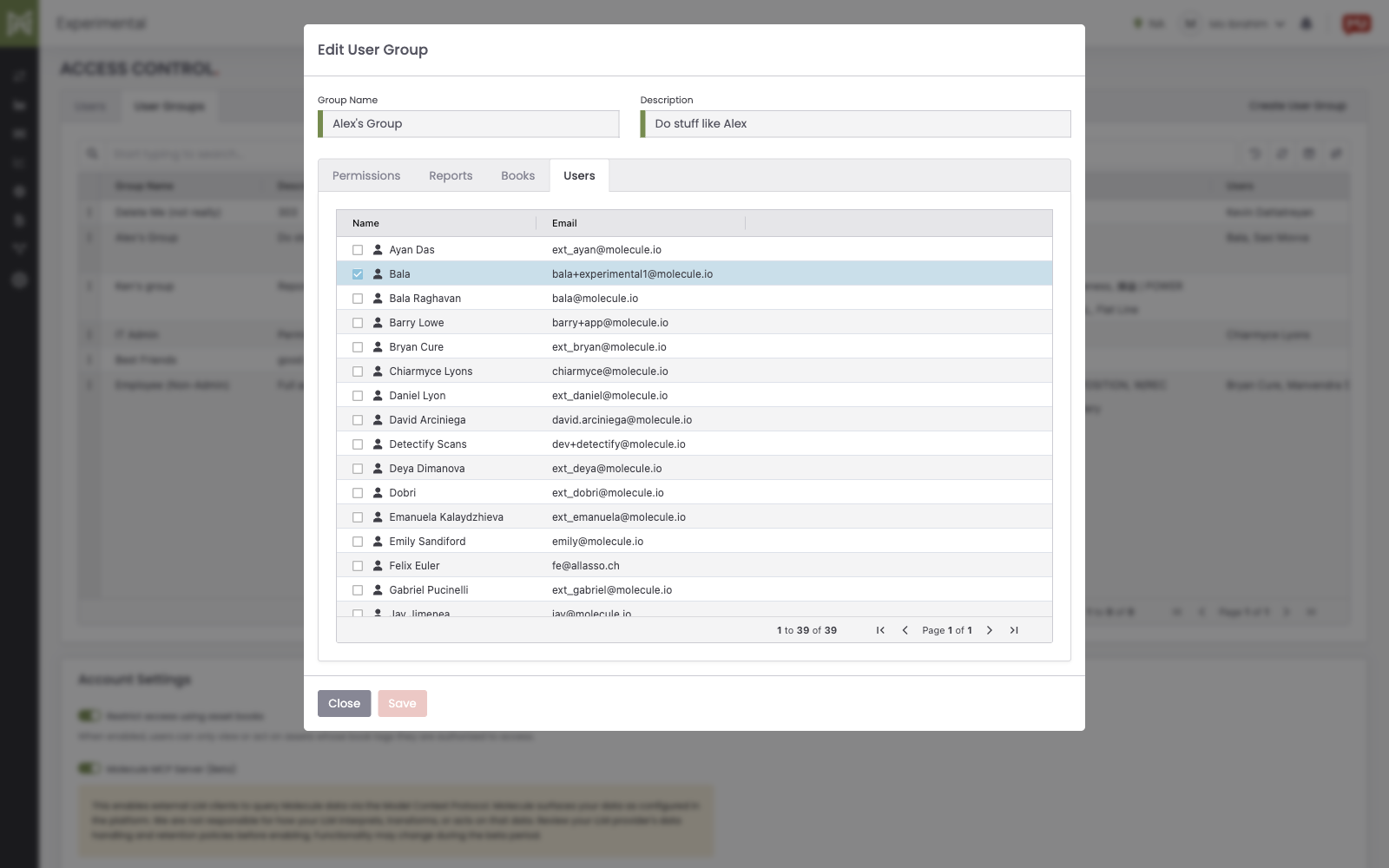
Add the new user to the same group(s) as your reference user; they inherit the group's access — including reports — on save.
Troubleshooting invites
The invite link expired before they set up their account. Molecule has no self-serve "resend invitation" control today — the Access Control area offers only Create, Edit, and Delete for a user, with no resend action. If an invite link expires, contact Molecule Support to have a fresh invitation issued. (Correction: the original article said an admin could "resend the invitation from the user's record"; that control does not exist in the product.)
The invitation was rejected. The most common reason is an email domain restriction: some accounts only allow invitations to specific email domains, and an address outside the allowed list won't go through (this is what blocks, say, a contractor on a different domain). Allowed domains are set at the account level by Molecule's implementation team — not something you toggle yourself — so if a legitimate invite is rejected, ask Molecule to add the domain rather than looking for a setting on your side.
FAQ
Will the new user get an email automatically?
Yes. As soon as you create the user, Molecule emails an invitation to the address you entered — you don't need to send anything. Ask them to check spam if it hasn't arrived.
Their invite link expired — what do I do?
There is no self-serve resend control today. Contact Molecule Support to have a new invitation issued.
Can I copy another user's permissions?
There's no copy-permissions button. Instead, add the new user to the same group(s) as the person you're matching — they'll inherit that group's access, including reports, without hand-copying.
I added a user but they can't log in yet — why?
They first have to accept the invitation email and set up their credentials; until they do, they can't log in. (The exception is SSO accounts, where acceptance is automatic and they simply log in through your identity provider.)
The invite was rejected — why?
Most likely the email's domain isn't on the account's allowed list. Allowed domains are configured by Molecule's implementation team, so ask Molecule to add the domain and then re-send the invitation.
Related articles
Editor: hyperlink each of these to its help.molecule.io article before publishing.
If you're still stuck after the checklist above, contact support@molecule.io with the details listed in "If none of these explain it."