Who Can See Which Reports: Managing Report Access (and Getting a User-Permissions Audit)
Last updated: October 7, 2026
In Molecule, a user only sees the reports they've been granted access to — not everyone in your account sees every report. Access is driven mostly by user groups, so granting it is usually a matter of group membership. This article explains how report access works, how to grant it the right way, why a colleague might not see a report you can, and how to get a user-permissions view for an audit.
Not covered here
Adding or inviting a user in the first place → see the new-user article.
What each permission unlocks (the full matrix) → see "Permissions."
Changing what a custom report contains (its columns, books, or assets) → see the custom-report maintenance article. That's report content ; this article is about report access — who can see it.
A report that's empty or looks wrong → see the report-generation and report-discrepancy articles.
How report access works
A user group is a named set of users that share the same permissions — assign something to the group once, and every member inherits it. Report access works through groups in two ways at once:
Feature permissions (what a user can do) are inherited from their groups.
Report access (which reports a user can see) is also controlled per group: each group has a Reports tab — within the Edit User Group screen — listing the reports that group can access.
So adding a user to the right group grants that group's permissions and its reports in a single step, with no need to hand-assign reports one user at a time.
Access is additive: a user's access is the union of everything their groups grant plus anything assigned to them individually. Removing a user from a group removes that group's access, but anything assigned to them directly stays.
Access is also granular — a group (or an individual user) can have some reports and not others. You're not limited to all-or-nothing.
Where to grant it (confirmed). Report access is granted on a Reports tab, which appears in two places: on a user group (Users screen → User Groups → open the group's ⋮ menu → Edit → Reports tab) and on an individual user (Users screen → open the user via ⋮ → Edit → Reports tab). In both, you check the boxes for the reports that group or user should see, then Save. Granting at the group level is preferred. Confirmed against the Mirage UI and the codebase; replaces the prior SME-VERIFY note.
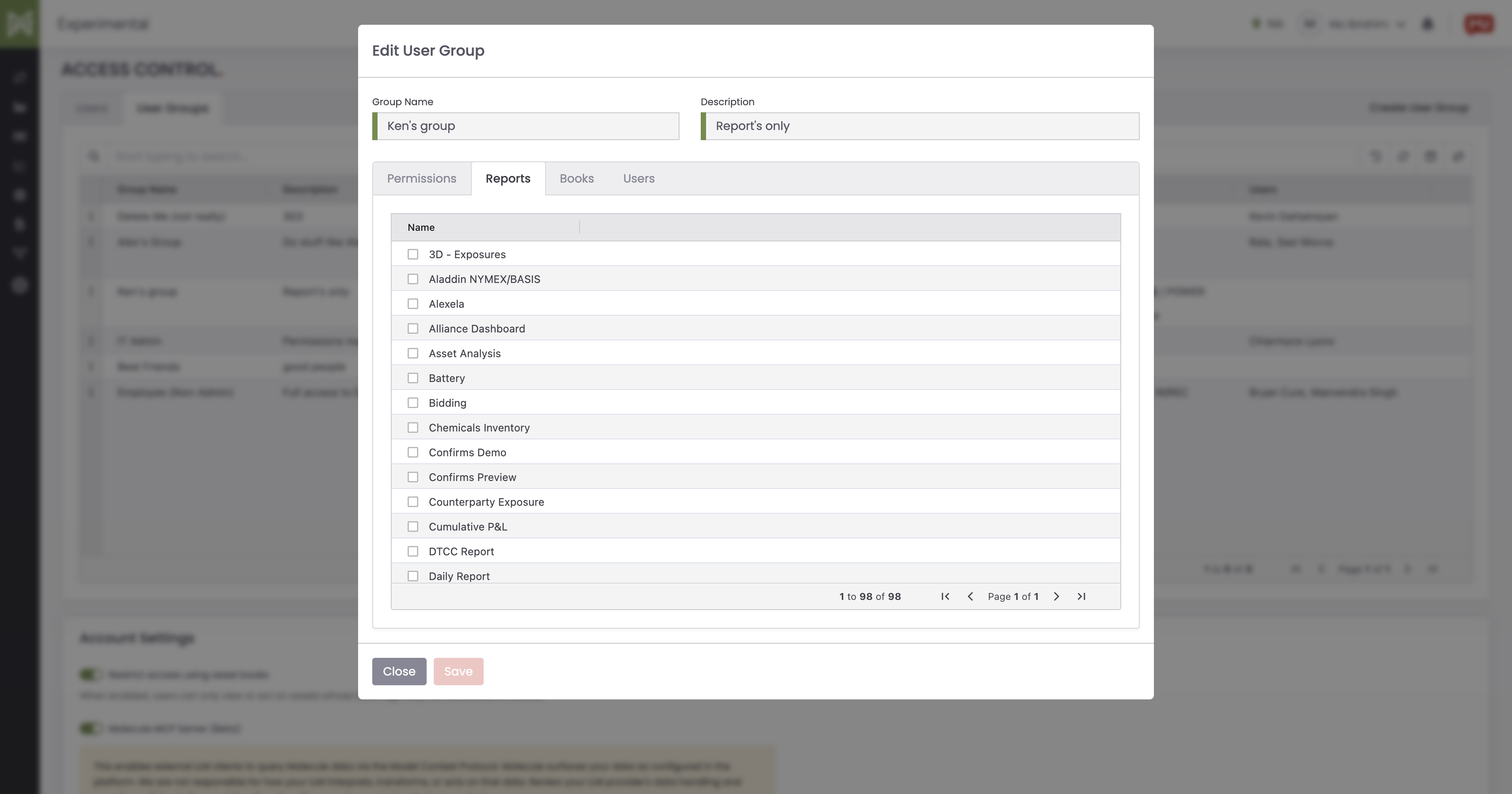
The Reports tab within Edit User Group. Report access is granted per group: check the reports a group should see on the Reports tab, and every member gains access.
Granting and troubleshooting access
To give a user access to a report: add them to a group that already has that report (preferred). If you want one person's access to match a colleague's, the simplest path is to add them to the same group(s) — the same approach you'd use when setting up a new user (see the new-user article).
"Why can't my colleague see a report I can?" Almost always, they're not in a group that grants it, and it isn't assigned to them individually. The fix is group membership: add them to a group that has the report.
Manage access at the group level. Because access is group-driven, keeping it at the group level stays consistent and is far easier to audit later; per-user assignments are harder to track over time.
Self-serve vs. Molecule. Adding a user to an existing group — and choosing which existing reports a group can see — is something your admins do themselves. Custom reports (the bespoke Mode reports Molecule builds for your firm) work the same way once they exist: Molecule builds the report and makes it available in your account, after which your admins assign it to a group or user themselves on the Reports tab. So a brand-new custom report may need Molecule to build and make it available first — but assigning an available report to a group is self-serve, not something Molecule does for you.
Getting a user-permissions audit
A common audit-season ask is a single list of every user and everything they can access. Here's the honest picture:
Per-user snapshot — available. An admin can open an individual user in the user-management area and see that user's permissions (a per-user snapshot — one user's roles and access at a glance). On the user's Permissions tab, an "Inherited Via Group" column shows, for each permission, which group granted it — versus permissions set directly on the user. That provenance is the key tool for a per-user access review. See "Access Control - Users and Groups."
Account-wide export — not self-serve. There is no standard, self-serve report that lists every user and everything they can access across the whole account. A full account-wide user-permissions audit — for example, for a SOC or security review — is a custom report Molecule would build , not a standard export you can run yourself.
If you need that account-wide audit, contact support to scope it. Custom reports aren't covered by the standard support SLAs, so request it ahead of your audit deadline rather than during crunch. (For how custom-report requests work, see the custom-report maintenance article.)
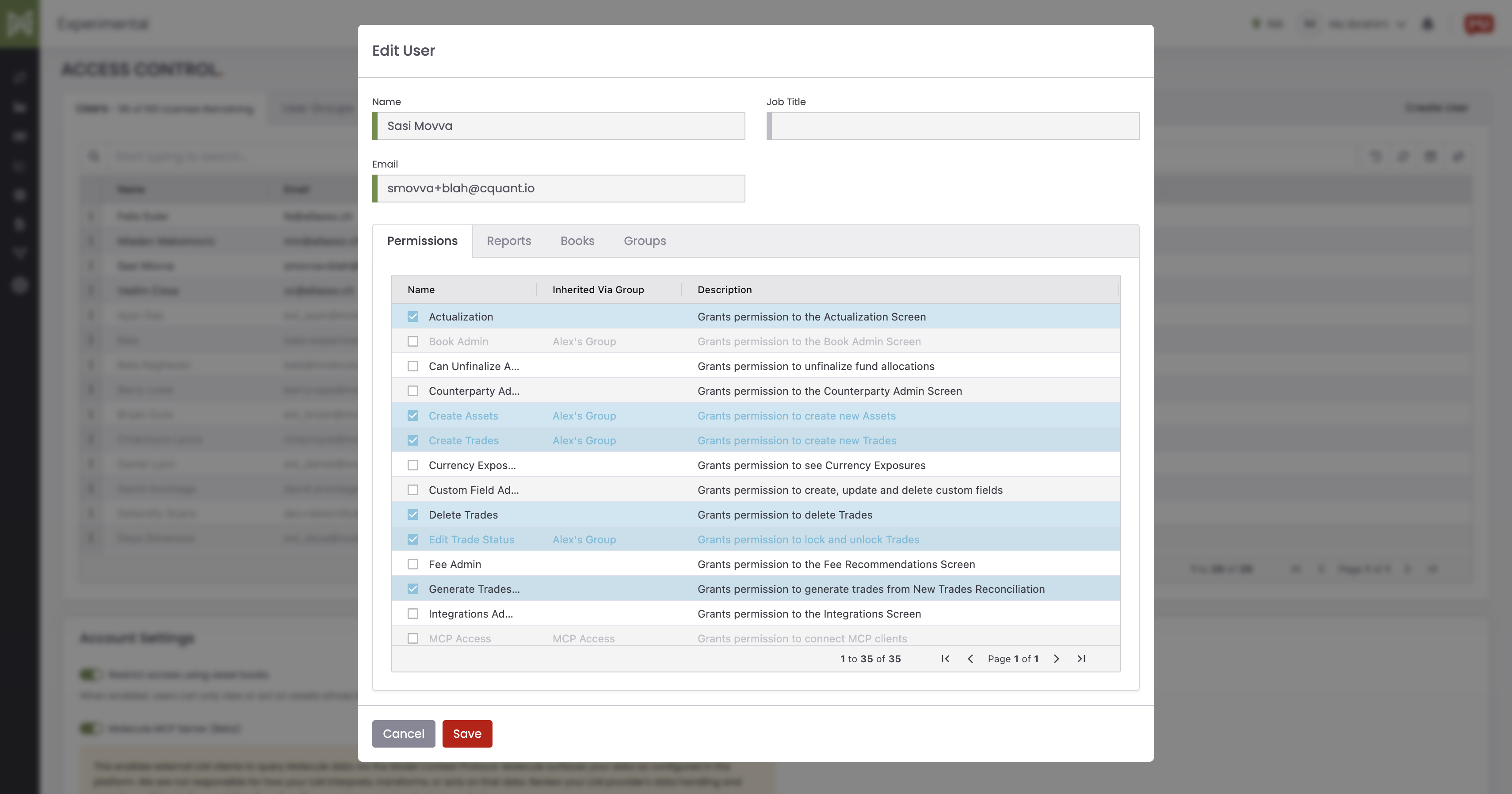
An individual user's permission snapshot. An admin can view any one user's permissions at a time — including which permissions are inherited from a group; there is no self-serve export of all users at once.
What to send support
For report access: the user(s), the report name(s), and — preferred — which group they should be in to match the access they need.
For an audit export: that you need an account-wide user-permissions/access export, the audit it's for, the fields you need (users, groups, permissions/reports), and your deadline.
FAQ
How do I give someone access to a report?
Add them to a group that already has that report — that grants the group's permissions and its reports in one step. To match a colleague's access, add them to the same group(s).
Why can't my colleague see a report I can?
They're not in a group that grants that report, and it isn't assigned to them individually. Add them to a group that has it.
Can a user have some reports but not others?
Yes. Access is granular — a group or an individual user can have access to some reports and not others.
Is there a report of all users and their permissions for our audit?
Not as a self-serve, account-wide export. An admin can view any single user's permissions (a per-user snapshot), but a full account-wide user-permissions audit is a custom report Molecule builds. Contact support to scope it, and ask ahead of your deadline — custom reports aren't covered by standard SLAs.
Should I assign reports per user or use groups?
Use groups. Group-based access is consistent and far easier to audit; per-user assignments are harder to track over time.
Related articles
Editor: hyperlink each of these to its help.molecule.io article before publishing.
If you're still stuck after the checklist above, contact support@molecule.io with the details listed in "If none of these explain it."