# How to Import Market Data (Surfaces)

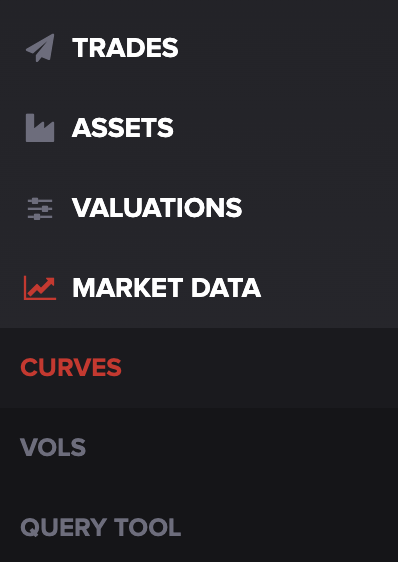
First, click on the **MARKET DATA** tab on the left-hand side, then select curves.
<div align="left"><figure><img src="https://files.helpdocs.io/56bu62syz9/articles/p1snmso5zd/1689265027668/file-hke-vr-4-kz-ae.png" alt="" width="188"><figcaption></figcaption></figure></div>

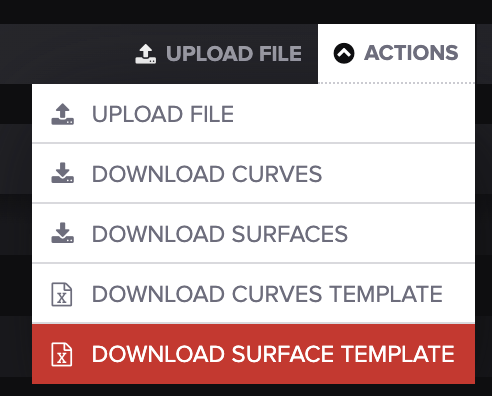
Under the **ACTIONS** menu on the right-hand side, select **DOWNLOAD SURFACE TEMPLATE.**

<div align="left"><figure><img src="https://files.helpdocs.io/56bu62syz9/articles/p1snmso5zd/1689265027936/file-q-3-fyja-9-qkt.png" alt="" width="375"><figcaption></figcaption></figure></div>

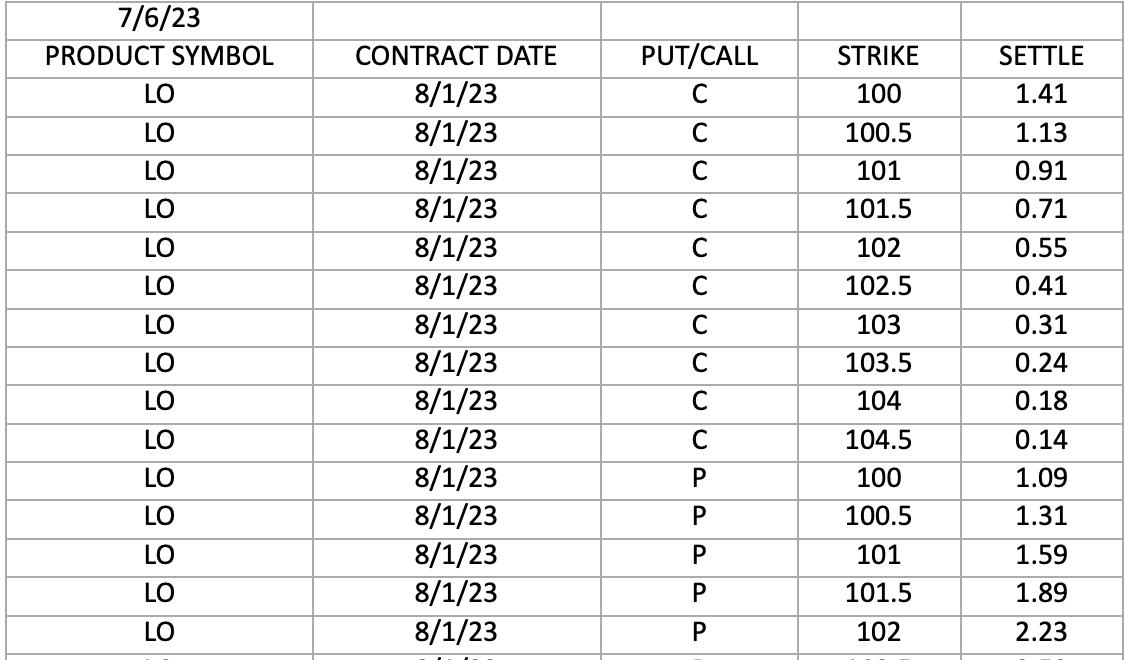
Fill in your product names/codes, as-of date, and marks for as many products as you need. The final results should look something like this:
<div align="left"><figure><img src="https://files.helpdocs.io/56bu62syz9/articles/p1snmso5zd/1689265028190/file-rab-b-9-iuvz-l.png" alt="" width="563"><figcaption></figcaption></figure></div>

When you're finished, upload your spreadsheet by selecting **UPLOAD FILE** next to the **ACTIONS** menu:

<div align="left"><figure><img src="https://files.helpdocs.io/56bu62syz9/articles/p1snmso5zd/1689265028537/file-ze-wdg-hyhl-8.png" alt="" width="375"><figcaption></figcaption></figure></div>

Once your file is uploaded, you should get a notification under the **MESSAGES** tab:

<div align="left"><figure><img src="https://files.helpdocs.io/56bu62syz9/articles/p1snmso5zd/1689265028784/file-nd-db-84-kl-1-m.png" alt="" width="375"><figcaption></figcaption></figure></div>

The message will tell you if your upload was successful or if there is an error.

Make sure to delete your message when you're finished so there's no confusion with future uploads.

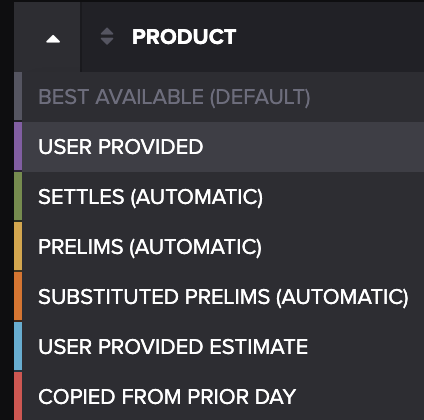
To see your upload, click the drop-down menu on the far left. This menu should populate:
<div align="left"><figure><img src="https://files.helpdocs.io/56bu62syz9/articles/p1snmso5zd/1689265029023/file-xlmbzx-wb-6-o.png" alt="" width="375"><figcaption></figcaption></figure></div>

Select **USER PROVIDED** from the drop-down and search for the product name you included on the spreadsheet.

You can also search for product names/codes by pressing on the **PRODUCT** title column:

<div align="left"><figure><img src="https://files.helpdocs.io/56bu62syz9/articles/p1snmso5zd/1689265029269/file-s-smtf-0-qdte.png" alt="" width="563"><figcaption></figcaption></figure></div>

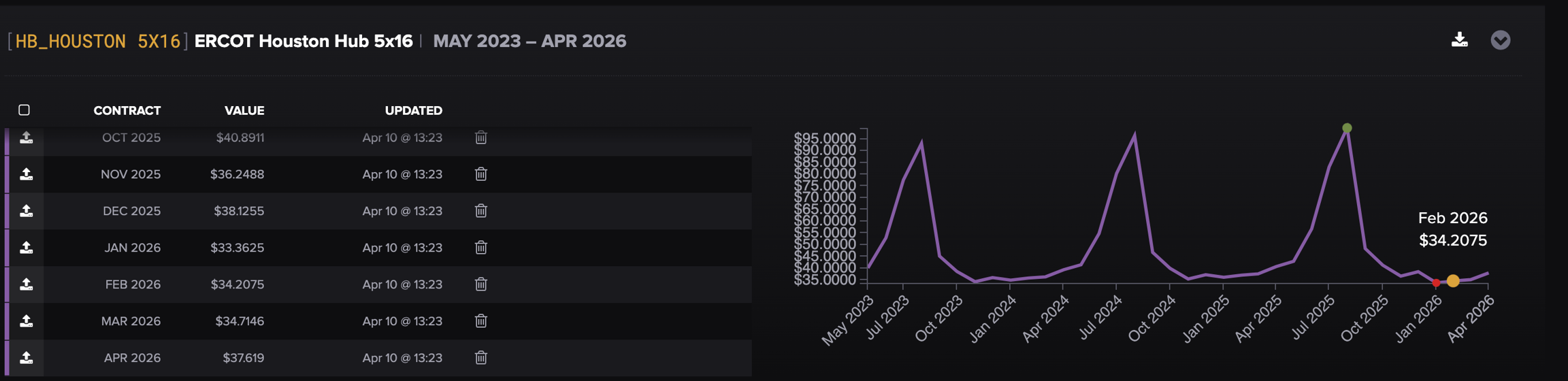
Once you find the product you're looking for, click on its row to see the table with its contract, value, and upload date, along with a graph on the left-hand side:
<div align="left"><figure><img src="https://files.helpdocs.io/56bu62syz9/articles/p1snmso5zd/1689265029504/file-yqki-aayl-le.png" alt="" width="563"><figcaption></figcaption></figure></div>

You may include multiple tabs, and they should all be parsed

That's it! If you have issues or questions, feel free to send them our way at <support@molecule.io>.

<br>