

How to Pivot and Group on the Valuations Screen
Once you've created a view, you can group and aggregate it for collapsible and expandable trade-level detail.
First, go to the VALUATIONS screen from the main menu.
Grouping on a Detailed View
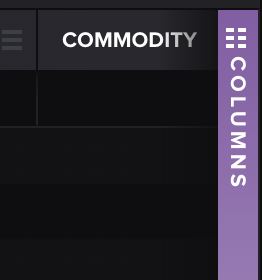
Open your desired view, then click the purple column picker on the right-hand side of the screen:
Choose the columns you'd like to include in your view:
TIP: You can scroll or use the search bar for quicker access.
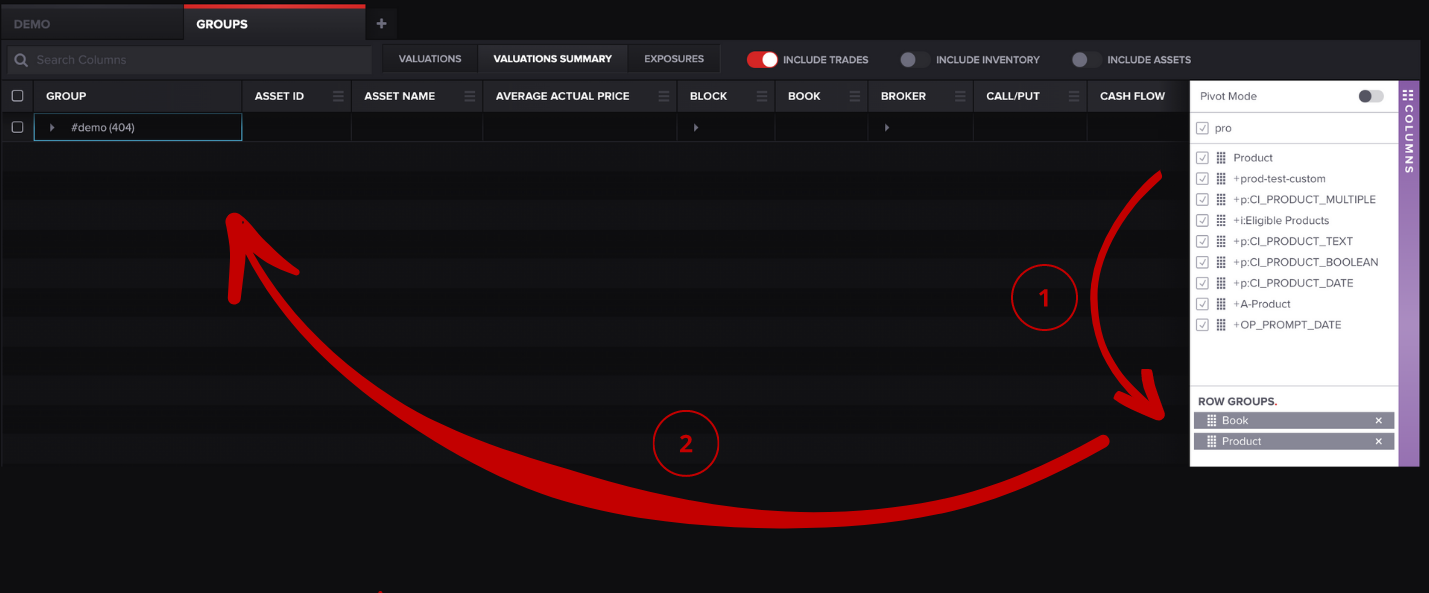
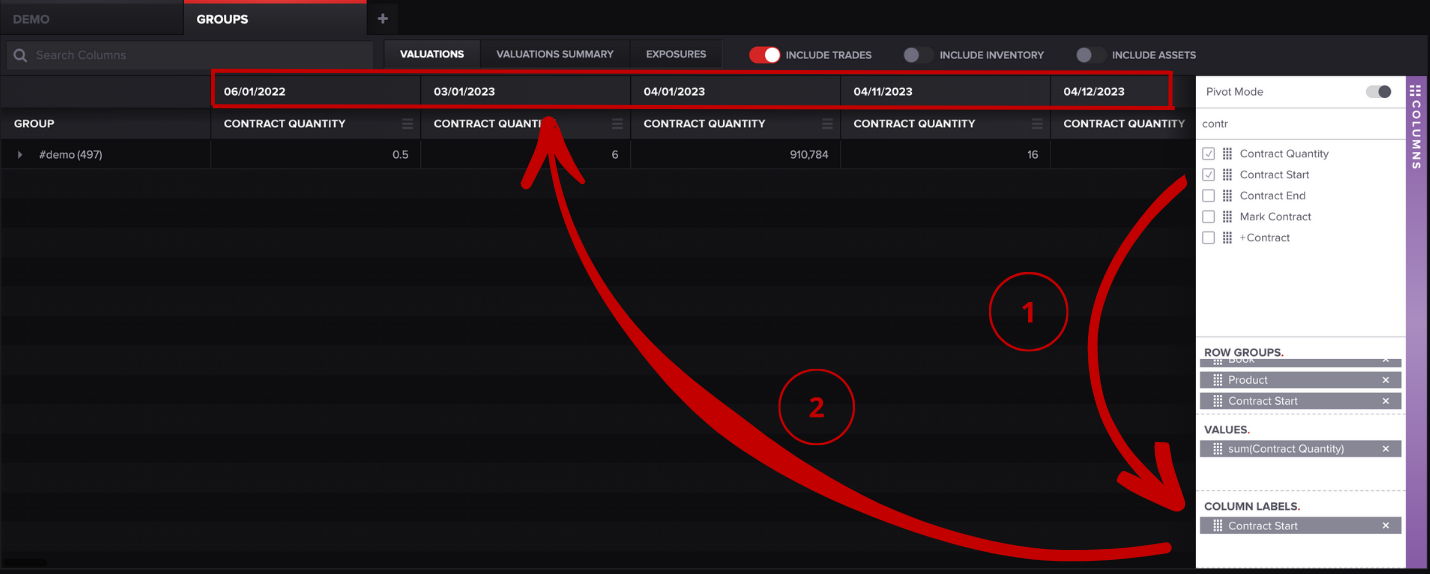
Drag columns by holding the grid symbol to the left of the name and move them to the ROW GROUPS section. A field will populate under your view tab.
After adding columns under ROW GROUPS, add columns under the VALUES section:
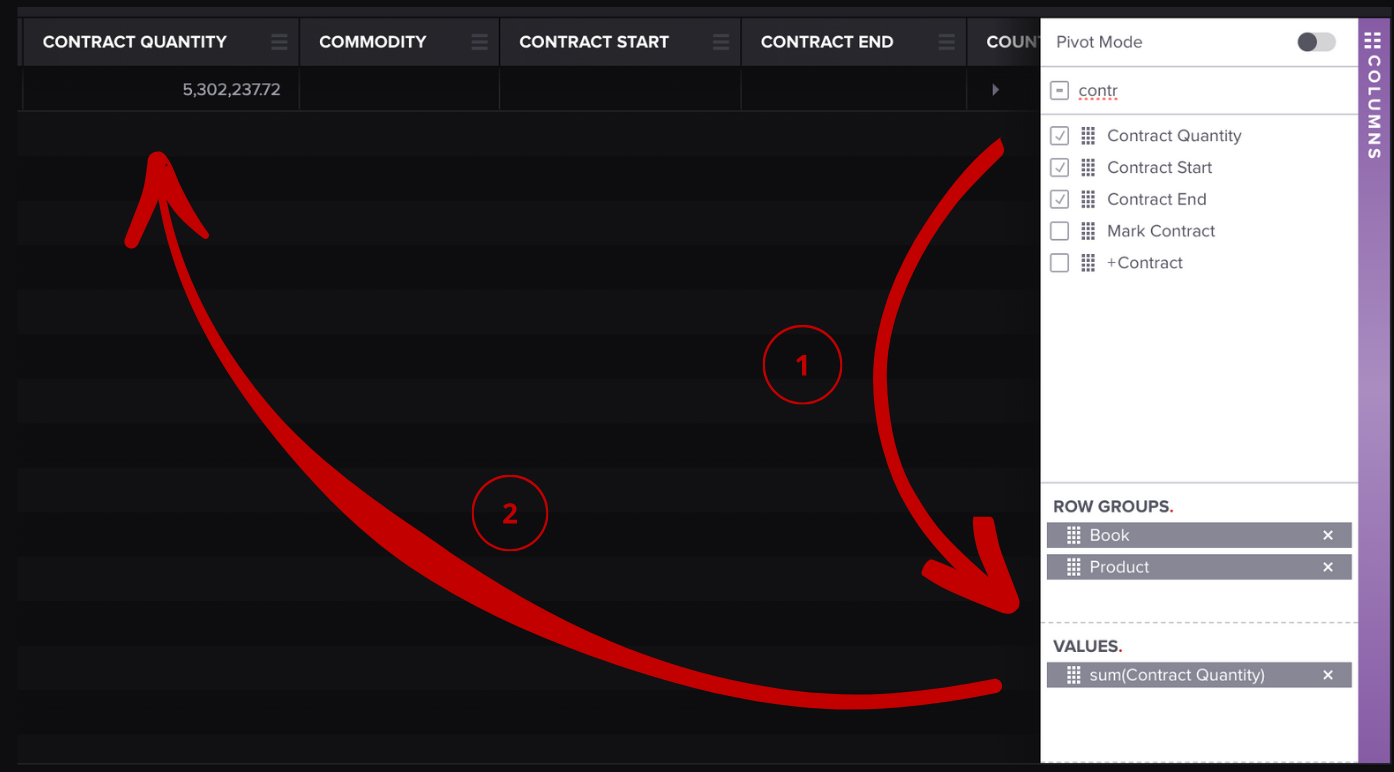
As you drag items, columns will be added to your table in Molecule.
If columns aren't appearing in the table, make sure the column checkbox is selected in the column picker.
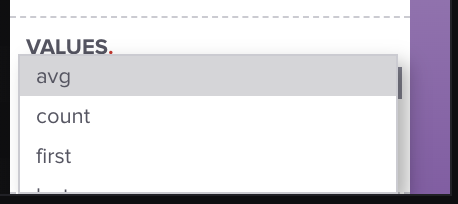
The default aggregation method is a summation. To change the aggregation, click the item in the column picker (for example, sum(Contract Quantity)). A list of aggregation options will appear—choose the desired method:
That's it! If you have any questions, please let us know at [email protected].
See related: How to use the Valuations Screen.
Last updated
Was this helpful?